How to Build a Team Roster in Airtable
When people work across several projects, the roster should show every assignment in one place. Each project manager can update the people and dates for their own projects, while the wider team can see who is working, when they are working, and where they are assigned.
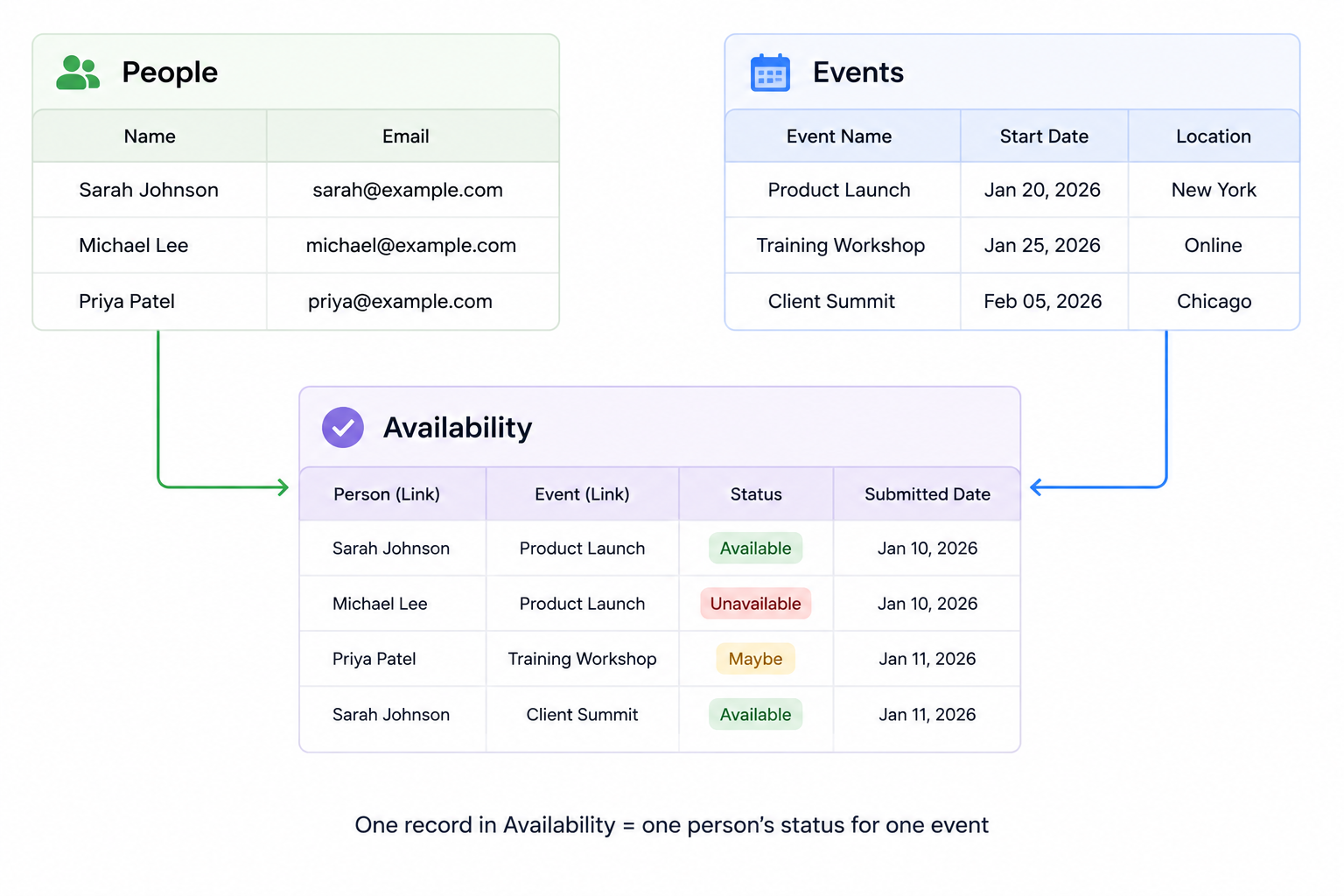
The simplest setup keeps the people, projects, and assignments in separate tables. An assignment is one scheduled piece of work for one person on one project.
Create the roster tables
Create a People table with one record for each team member. Add fields such as Name, Email, Role, and Department.
Create a Projects table with one record for each production or project. Add fields such as Project name, Start date, End date, and Project manager.
Then create an Assignments table. Each record in this table represents one person working on one project.
| Field | Type | What it stores |
|---|---|---|
| Person | Linked record to People | The team member |
| Project | Linked record to Projects | The production they are working on |
| Start | Date with time | When the assignment begins |
| End | Date with time | When the assignment ends |
| Role | Single select | Their role on that project |
| Status | Single select | Proposed, Confirmed, or Canceled |
| Notes | Long text | Travel, location, or other details |
For example, if Sarah works on an NBL broadcast from Monday to Wednesday and then joins a documentary on Friday, create two Assignments records. Both records link to Sarah, but each one links to a different project and has its own dates.
This structure gives management one master roster without copying the same person into every project table.
The Assignments table is a junction table because each record connects one person to one project and stores details about that connection. The same pattern is useful for other relationships too. See how to create a junction table in Airtable for more examples.
Create a master roster
Use the Assignments table as the master roster because it contains the project, person, and assignment dates in the same record.
Create a grid view filtered to Status is not Canceled. Add the Person, Project, Start, End, and Role fields so the team can scan the current assignments.
For a calendar, create a Calendar view from the Start field and use the End field for the assignment length. This gives management a date-based view of who is working and on which project.
If a confirmed assignment should also create a calendar invitation, see how to automatically send Outlook calendar invites from Airtable.
If you need to see overlapping work more clearly, create a Timeline view from Start and End, then group the records by Person. Each person's assignments appear on the same row, so overlapping projects are easy to spot.
If each assignment also has an estimated number of hours, use Timeline's Utilization summary to compare assigned work with each person's available capacity. See how to track team capacity and available hours in Airtable.
Give each project manager a project roster
You do not need a separate base or table for every production. Create a view of Assignments for each project and filter it by the relevant Project record.
For example, a view called NBL broadcast roster can show only assignments linked to the NBL broadcast. A project manager can use that view to add or update the people assigned to that production, while the master calendar continues to include every project.
If several managers need different editing access, build an Interface with a project filter instead of giving everyone access to the full base. Interface filters control what appears on the page, and a user can edit records there only when the interface and base permissions allow it. For more restricted setups, see how to restrict Airtable access by table, field, or row.
If managers belong to different departments, you can also filter an Interface using Airtable user groups. See how to filter an Airtable Interface using user groups.
Check for scheduling conflicts
Use the Timeline view grouped by Person to check whether one person has two overlapping assignments. Filter out canceled assignments before reviewing the schedule.
The linked tables store the assignments, but they do not automatically compare every assignment with every other assignment. If you need Airtable to mark conflicts automatically, add a separate automation or script after the basic roster is working.
Collect availability before assigning someone
Availability is different from a confirmed assignment. A person can be available for one project, unavailable for another, or still deciding.
For that information, add an Availability table with one record for each person and event or assignment period. Link each record to People and Projects, then add an Availability field with options such as Available, Unavailable, Maybe, and Pending.
If contractors do not have Airtable access, send them a form that creates an availability record. They can choose their response and add a note without opening the base.
If someone needs to change an existing availability record, use an Interface for signed-in Airtable users or a form tool such as Fillout that can update the record. A standard Airtable form creates a new record for each submission.
If the form needs to update existing records or let people resume an unfinished response, see when Airtable Forms are not enough and why to use Fillout.