How to Restrict User Access by Table, Field, or Row in Airtable
You are building an Airtable base with multiple tables that map directly to different user roles, such as Operational, Manager, and Admin.
Each role should only see the data that is relevant to them. Operational users should only have access to operational tables, managers should be able to see both operational and manager tables, and admins should have full visibility across the entire base.
Interfaces solve part of this problem by allowing you to control which tables and fields are shown to each user.
This leads to an important question. Can you manage user level access in Airtable so that each role only sees specific rows or fields, or are Interfaces the only recommended way to hide data and restrict access?
Before you commit to a structure, it is important to understand Airtable’s actual capabilities and limitations so you can design your base correctly from the start.
Permissions at the Base Level
At the base level, Airtable permissions are intentionally broad.
Once a user has access to a base, they can see all tables in that base. There is no native setting that allows you to give a user access to one table while completely hiding another table within the same base.
Because of these limitations, the base itself is not the right place to enforce detailed visibility or access rules.
Interfaces Are the Recommended Way to Control Visibility
Airtable Interfaces are designed to address this exact gap.
Using Interfaces, you can decide which tables are exposed, which fields appear on each screen, and which users can access each interface.
An operational user can be given an interface that only shows operational tables and only the fields required for their work.
A manager can be given a separate interface that includes additional tables and fields related to review and approvals.
An admin can be given full access.
Although all data still lives in the same base, users only interact with the parts you deliberately surface through Interfaces.
Controlling Editing Behavior
If your goal is to control what users can see, meaning which tables and fields are visible to them, Interfaces are the right tool.
Editing, however, can be controlled at two different levels.
At the interface level, you can decide whether a field is editable or read only, which allows users to view data without being able to change it.
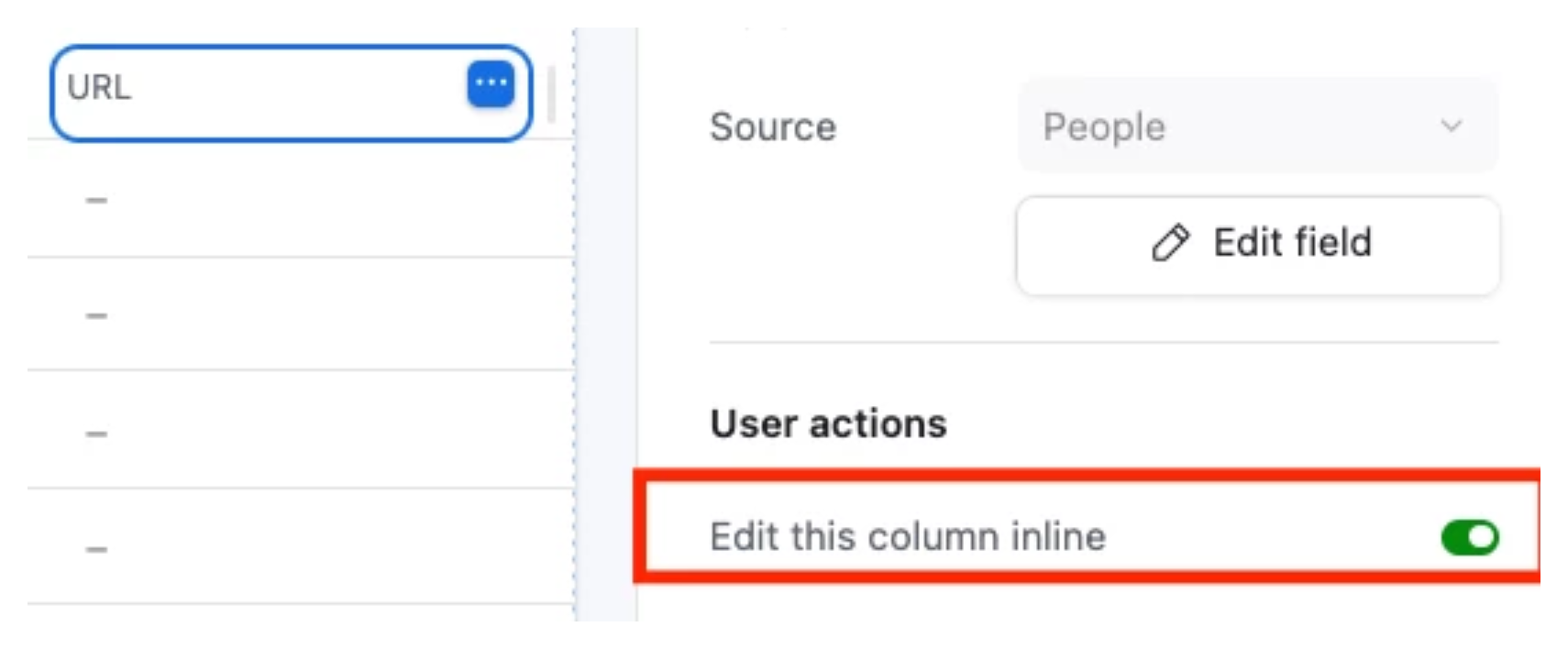
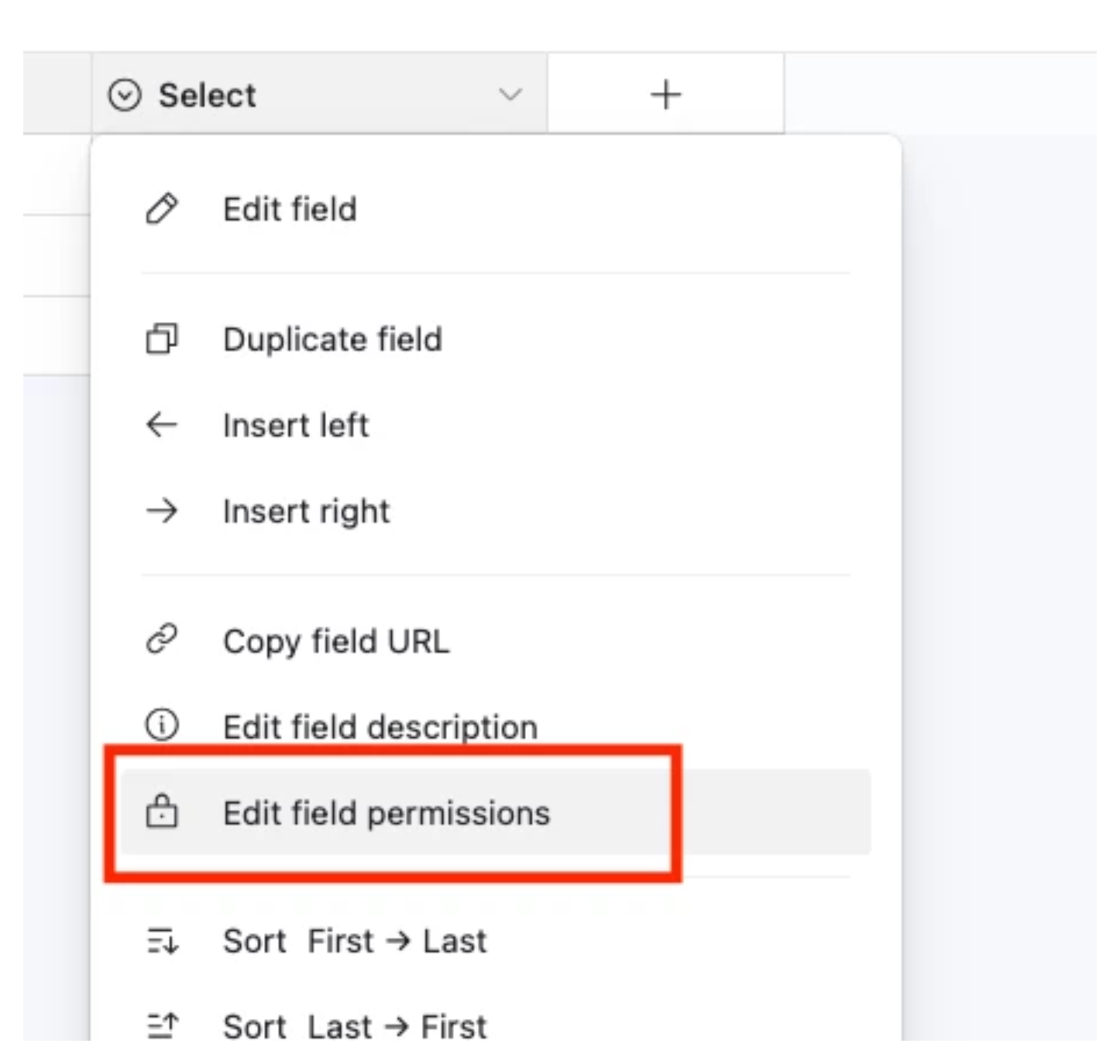
At the base level, Airtable also provides field permissions, where you can specify which user are allowed to edit each field.
Row Level Access
Airtable does not support true row level permissions, but you can approximate this behavior.
The common pattern is to associate each record with a user. This is typically done using a user field or an email field that matches the user’s login.
Within an Interface, you then apply filters based on the current user. For example, you might only show records where the assigned user is the current user, or where the email field matches the logged in user’s email.
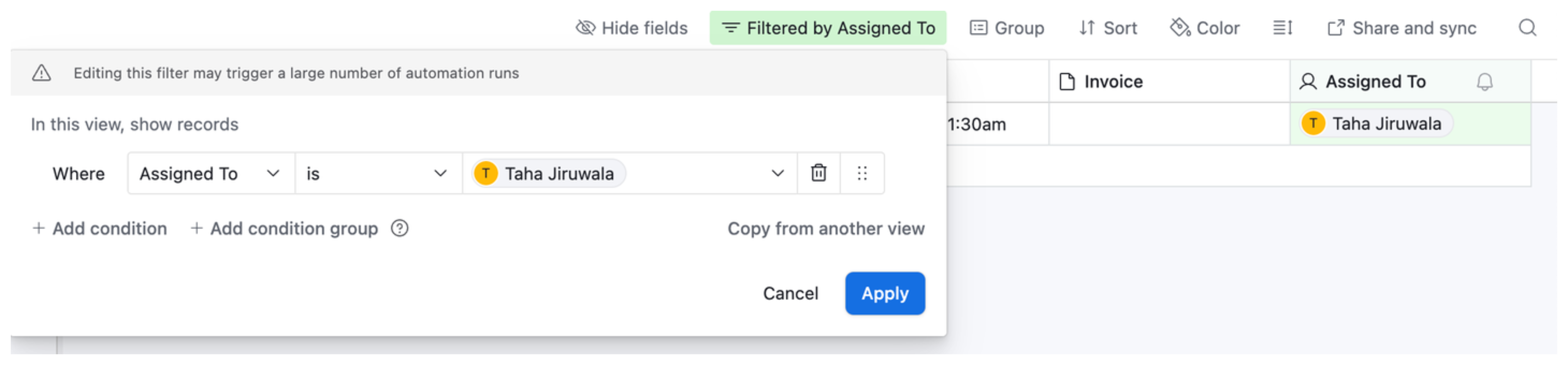
As a result, each user only sees the records that belong to them.
If you need more granular control over which tables, fields, or records are exposed to different user roles, third party portal tools like Softr or Noloco can give you full row-level access control per user with a clean external interface.
Field Editing Permissions at the Base Level
Beyond interface-level field control, Airtable also supports field editing permissions at the base level on paid plans. These restrict which collaborators can edit a specific field regardless of how they access the base.
To set field editing permissions:
-
Click the arrow icon to the right of the field name in any grid view
-
Click Edit field permissions
-
Under "Who can edit values in this field?", choose the permission level
This is useful for protecting fields like status, salary, or margin that should only be changed by specific roles, even when those roles have general Editor access. Note that this only restricts editing. It does not hide the field from view. To hide a field from a user entirely, you need to use Interface only access.
When to Use Multiple Bases
When sensitivity requirements are high enough that Interface filtering is not sufficient, the most robust solution is to separate data into different bases entirely.
Keep shared operational data in one base accessible to the broader team. Put confidential data (compensation, financials, confidential client notes) in a restricted base that only specific people can access. Use Airtable Sync to bring non-sensitive fields from the shared base into the restricted base so decision-makers have full context.
This approach means sensitive data physically does not exist where unauthorized users can reach it, regardless of how they access Airtable.
Further Reading
For a deeper look at why Airtable cannot restrict visibility at the base level and what to do about it, see Why You Cannot Restrict Sensitive Data in an Airtable Base.
For the full picture on permission levels across workspace, base, and interface, see How to See and Manage User Permissions in Airtable.
If you are specifically trying to restrict what new team members can see when they are onboarded, see How to Restrict a New Collaborator's Access to Historical Records and Sensitive Fields.