How to Restrict a New Collaborator's Access to Historical Records and Sensitive Fields in Airtable
When a new team member joins and you add them to your Airtable base, two problems tend to surface immediately.
The first is that they can see fields they should not. A Salary field, a Margin field, confidential notes - anything in the base is visible to anyone with base access, regardless of how sensitive it is.
The second is that they can see everything going back to day one. Older candidate records, historical deals, archived projects - there is no built-in way to say "this person should only see records created after they joined."
Airtable does not solve either of these natively at the base level. But both are solvable with the right setup.
Problem 1: Hiding Sensitive Fields from Certain Collaborators
Why you cannot hide fields inside the base
If someone has Editor, Commenter, or Read-only access to a base, they can see all fields in that base. Field-level permissions in Airtable control who can edit a field, not who can see it. There is no built-in way to hide a field from a collaborator who has base access.
This means if you give a new recruiter Editor access to your recruitment base, they can see the Salary field regardless of what you configure.
The solution: Interface-only access
The standard Airtable approach for this situation is to remove base access entirely and give the collaborator access only to a specific Interface.
An Interface-only user sees only the pages you have built for them. If you build those pages without the Salary field, they will never see it. They cannot navigate to the underlying table, create views, or inspect field configurations.
How to set this up:
-
Build an Interface that includes all the fields the new collaborator needs but excludes any sensitive fields
-
From the Interface editor, click Share in the top-right corner
-
Invite the collaborator by email directly from the Interface share settings
-
Do not add them as a base collaborator - the invitation here gives them Interface access only
The collaborator will receive an email invitation and can log in to view and interact with the Interface without ever seeing the underlying base.
The tradeoff: Interface-only users cannot create their own fields, build views, run automations, or make structural changes. They can only work within what you have built for them. For a new recruiter who is doing day-to-day work rather than managing the base, this is usually the right level of access.
The alternative: A separate restricted base
If the sensitive data is highly confidential and you want it completely separated rather than just hidden in an Interface, keep it in a second base.
The setup is straightforward:
-
Base A is the shared operational base. Everyone with access can see it. It contains recruitment records, candidate details, notes, and statuses - but no salary data.
-
Base B is the restricted base. Only HR, finance, or leadership has access. It contains the salary and compensation data.
You can sync the candidate records from Base A into Base B using Airtable Sync, so the restricted team can see all the recruitment data alongside the salary information without those two datasets ever living in the same place accessible to the broader team.
This approach is more robust than Interface-only access because the data is physically not in the same base. Even a determined person with technical knowledge cannot extract what is not there.
For more on this approach, see Why You Cannot Restrict Sensitive Data in an Airtable Base and What to Do Instead.
Problem 2: Limiting New Collaborators to Records Created After Their Start Date
Why this is harder
Airtable has no native permission setting that restricts a user to records created after a certain date. When you add someone to a base or Interface, they can see everything in whatever view or Interface page you give them access to.
The only native tool that comes close is Interface filtering based on the current user. You can build an Interface page that shows "records linked to the logged-in user." If you set up your records to link to the users who should see them, each person only sees their assigned records.
The challenge is applying this to the new-vs-old distinction: older records were created before the new collaborator existed in the system, so they would not be linked to that person. Newer records, created after they joined, would be linked to them via an automation.
How to build this
Step 1: Add a "Visible to" linked record field
In your records table, add a linked record field called something like "Visible to" that links to your team members table (or a Users table if you have one). This field will store which users can see each record.
Step 2: Set up an automation to link new records to active team members
Create an automation triggered by "When a record is created" in your records table. The action should find all active team members and link the new record to each of them in the "Visible to" field.
From this point forward, every new record is automatically linked to all current team members when it is created. Records created before the automation was set up (and before the new person joined) remain unlinked to the new collaborator.
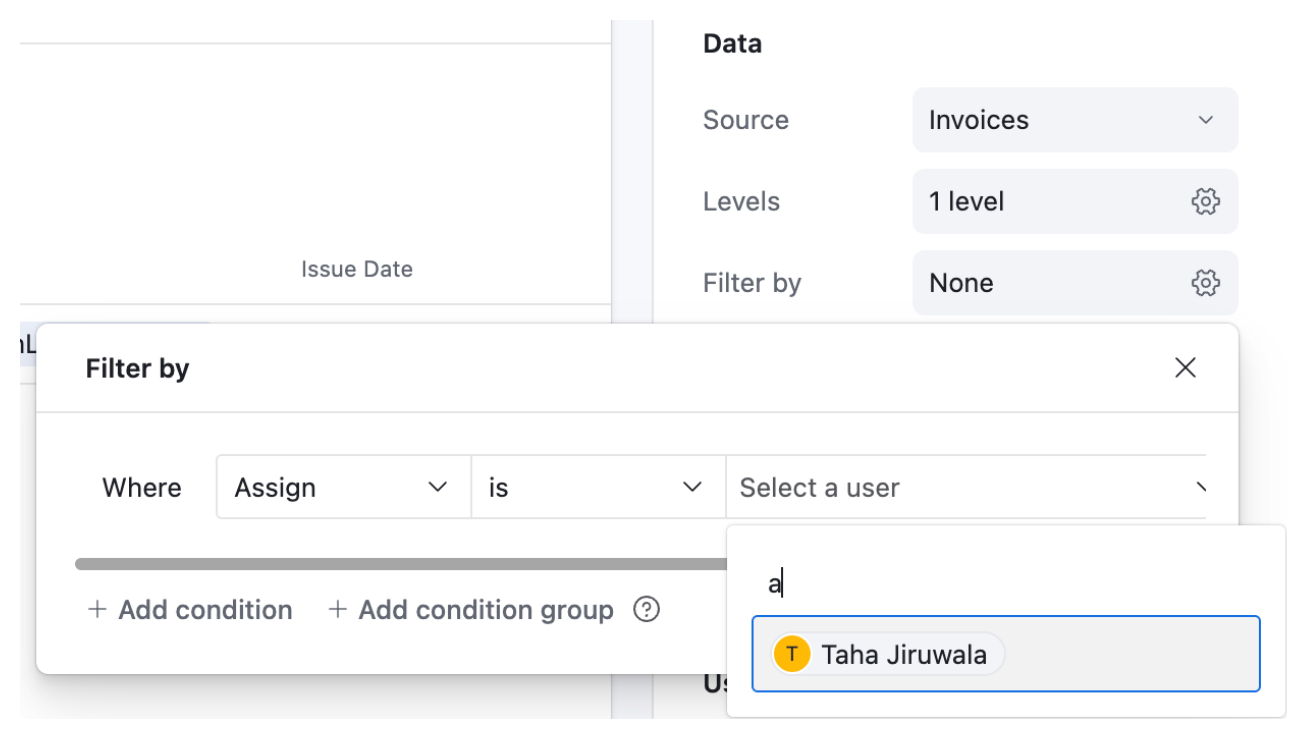
Step 3: Build the Interface with a current user filter
Create an Interface page for your records. Add a filter: "Visible to" contains the current user.
Now when someone logs in, they only see records where their name appears in the "Visible to" field. The new collaborator sees only records created after they were added to the system.
What to watch out for
This setup works well for simple record structures, but it has complexity at scale:
Automation volume: If your base creates many records per day, the automation that links each new record to all team members runs frequently. If you have a large team, each automation run creates many linked record updates. Monitor your automation quota.
Partial record visibility: If older parent records are not linked to the new user but newer child or related records are, the new user may see incomplete workflows. A candidate record from before they joined would be invisible, but a note or follow-up linked to that candidate and created after they joined would be visible - without context. Plan for this.
New team members: When a new person joins after the system is already running, you may want to give them access to some older records. This requires manually linking those records to them or running a one-off script.
For a deeper look at how to use current user filters in Interfaces, see How to Filter an Airtable Interface Using User Groups.
The Practical Setup for Most Teams
For most teams dealing with this:
For sensitive fields: Give new employees Interface-only access to a page that excludes the sensitive fields. This is fast to set up, requires no automations, and is easy to maintain.
For historical records: Only implement the "Visible to" automation approach if you have a genuine operational reason for the restriction. The setup is non-trivial and adds ongoing maintenance.
Many teams find that an Interface that defaults to a "Created in the last 90 days" filter gives new collaborators a sensible starting view without the complexity of per-user record linking.
For more on the different ways to control what collaborators can see and do in Airtable, see How to Restrict User Access by Table, Field, or Row in Airtable and How to See and Manage User Permissions in Airtable.