How to Filter an Airtable Interface Using User Groups
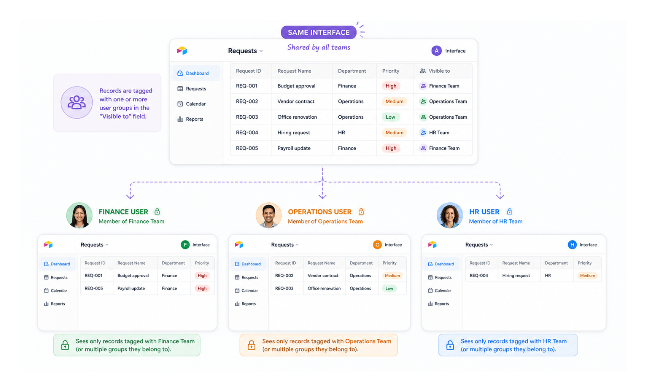
You may have one Airtable interface that several departments need to use.
Finance should see finance records. Operations should see operations records. Leadership may need to see both.
The first idea is usually to duplicate the interface for each department. That works for a while, but it becomes annoying quickly. Every layout change has to be repeated in every copy.
If everyone needs the same basic interface, I would use one interface and filter the records based on the person viewing it.
On Business and Enterprise Scale plans, Airtable user groups make this much easier.
What You Need
User groups are available on Business and Enterprise Scale plans.
You also need an Airtable account for each person you want to add to a group.
Create the Groups
User groups are managed at the workspace level, not inside one base.
Create one group for each team that needs its own filtered view. For example:
-
Finance Team
-
Operations Team
-
Leadership Team
Add the right people to each group.
User groups are for workspace members. External collaborators and public share-link visitors cannot be added to them.
Add a User Field to the Table
In the table that powers your interface, add a User field.
When you create the field, turn on Allow multiple users. If you leave it as a single-user field, Airtable will not let you add a group to it.
I usually name this field Visible to or Department Access.
Then add the group that should see each record.
For example, a finance record gets tagged with Finance Team. A record that Finance and Leadership should both see gets both groups.
If a record has no group in this field, it will not appear when your filter says Visible to contains the current user.
User groups also cannot be used as the default value for a user field, so you need to tag new records manually or with an automation.
Filter the Interface
Now open the interface you want to filter.
Add a filter to the page or to the specific grid, list, gallery, or chart you want to control.
Set the filter so your user field contains the Current user.
For example:
Visible to contains Current user
Airtable can match this through group membership. So if a record is tagged with Finance Team, and Maria belongs to Finance Team, Maria can see that record in the interface.
If someone belongs to more than one group, they can see records for each of those groups.
You can also use Airtable's Viewer's records only shortcut on supported interface elements. It is just a faster way to get to the same kind of current-user filter.
One important thing: this controls what someone sees in the interface. If they also have access to the underlying base, they may still be able to see the records there.
So if the records truly need to be hidden, use interface-only access or a portal setup instead of giving those users direct base access.
Test Before You Share It
Before sharing the interface, use Preview as or View as in the interface editor.
Check each group and a few real users.
This is where you catch records that were tagged with the wrong group, or old records that were never tagged at all.
What About Clients?
This setup is mainly for internal teams because Airtable user groups are for workspace members.
If you are sharing with clients, use a different setup. Airtable Portals is the native option for giving external users a client-facing way to view and work with records. Tools like Softr and Noloco are better when you want a more branded client portal or more control over the client experience.
When to Use This vs Separate Interfaces
Use one filtered interface when:
-
Multiple internal teams use the same base
-
The layout is mostly the same for everyone
-
The main difference is which records each group should see
Use separate interfaces when:
-
Different teams need different layouts
-
One team needs fields or actions that another team should not even see
-
The workflows are different enough that one shared interface becomes awkward
For more on how to combine interface filtering with base-level field permissions so different users can edit different fields in the same interface, see Using Base-Level Field Permissions to Control Editing in Interfaces.
For the broader question of what access control is and is not possible in Airtable, see Why You Cannot Restrict Sensitive Data in an Airtable Base.