How to Move an Airtable Base to Another Workspace
Airtable has a built-in option to move a base directly from one workspace to another. You do not need to duplicate and delete, export and re-import, or use any workaround. The base moves as-is, with all its tables, fields, records, views, automations, and interfaces intact.
How to Move a Base
-
Go to your Airtable home screen
-
Find the base you want to move
-
Click the ... icon to the right of the base name
-
Click Move base
-
Click the dropdown under "Choose workspace" and select the destination workspace
-
Click Move base
The base immediately appears in the destination workspace. A confirmation page opens showing the new location.
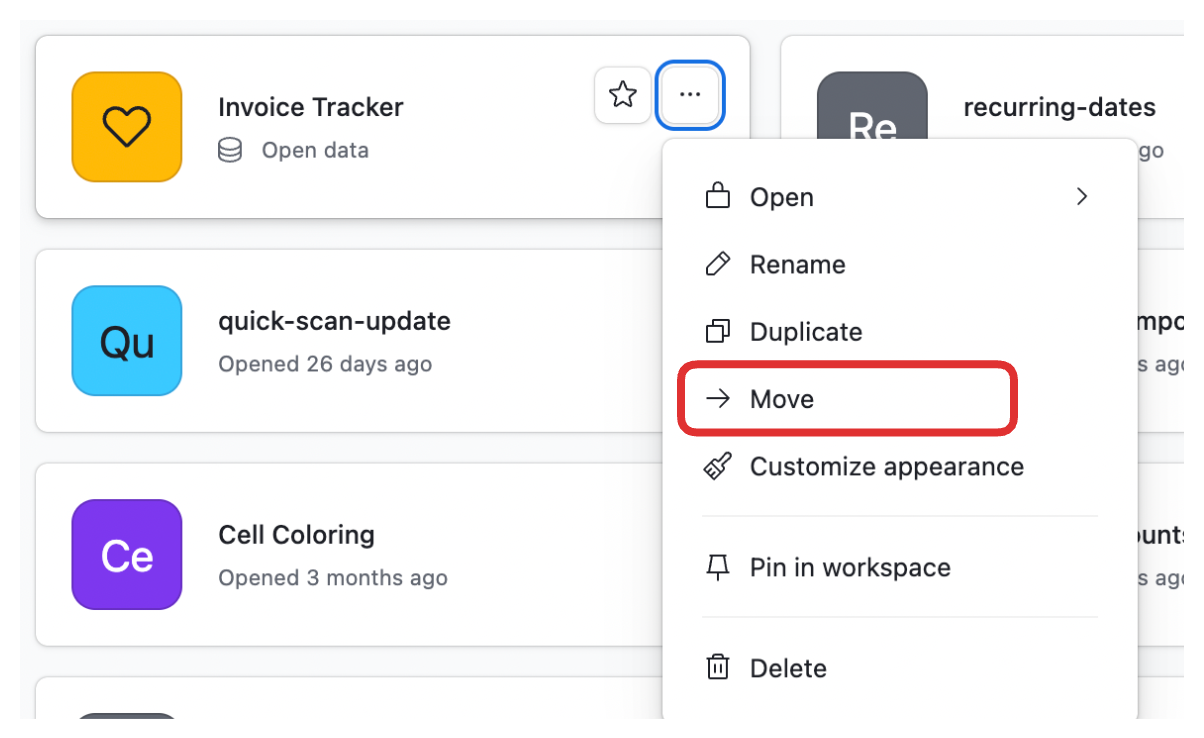
That is the entire process. The base is not duplicated - it physically moves. The original location no longer has it.
Who Can Move a Base
Owners can always move a base from one workspace to another, as long as they are an owner of both the source and destination workspace.
Creators can move bases between workspaces in most situations. The exception is when workspace-level sharing restrictions are enabled. Specifically:
-
If the destination workspace has "Restrict adding new collaborators" enabled (Team, Business, and Enterprise Scale workspaces), Creators cannot move bases there
-
If the destination workspace has "Prevent creation of new share links" enabled (Business and Enterprise Scale), and any views in the base have a share link, Creators cannot move the base there
If you are a Creator and the Move base option is greyed out or unavailable, the workspace likely has one of these restrictions enabled. Contact the workspace owner to have them move the base instead.
Editors, Commenters, and Read-only collaborators cannot move bases.
What Happens to Collaborators After the Move
This is the most important thing to understand before moving, because moving a base changes who has access to it.
Workspace collaborators from the original workspace who are also members of the new workspace retain access to the moved base at their permission level in the new workspace.
Workspace collaborators from the original workspace who are not members of the new workspace lose access to the base entirely when it moves.
Base-level collaborators (people who were added directly to the base rather than through the workspace) keep their access at the same permission level, regardless of whether they are in the new workspace.
Base-level collaborators who are also workspace collaborators in the new workspace are converted from base collaborators to workspace collaborators after the move.
Before moving a base that other people rely on, check the collaborators list and let affected teammates know their access may change. You may need to re-invite some people after the move.
What the Base Retains After the Move
Everything in the base moves with it:
-
All tables, fields, and records
-
Views with their filters, sorts, and groupings
-
Automations and their scripts
-
Interfaces
-
Linked records between tables within the base
-
Formulas
The base ID (app ID) stays the same. External integrations like Make scenarios, API calls, webhooks, all continue to work without any changes needed, because they reference the base by its ID which does not change.
This is the key advantage of Move base over the duplicate-and-delete approach: because the base ID is preserved, nothing external breaks.
Workspaces on Different Plans
If the source and destination workspaces are on different Airtable plans, the base will be subject to the limits and features of the destination workspace's plan once it moves. For example:
-
Automations that use Business or Enterprise features will stop working if the destination workspace is on the Team plan
-
The number of records, attachment storage, and automation run quotas will be governed by the destination workspace's plan
Check the destination workspace's plan before moving if the base uses any advanced features.
For more on how workspaces relate to bases and what each plan covers, see Airtable Base vs Workspace - Which One to Use. If you need to transfer a base to a completely different Airtable account rather than just a different workspace, see How to Transfer an Airtable Base to Another Account Without Breaking Anything.