How to Link People to Events in Airtable Without Duplicating Records
I’ll use a workshop as the example. Keep one record for each person in People and one record for each workshop in Events, then link them instead of entering the same person’s details again. If you also need to record a role, registration status, or attendance for each workshop, add an Event Participants table between them.
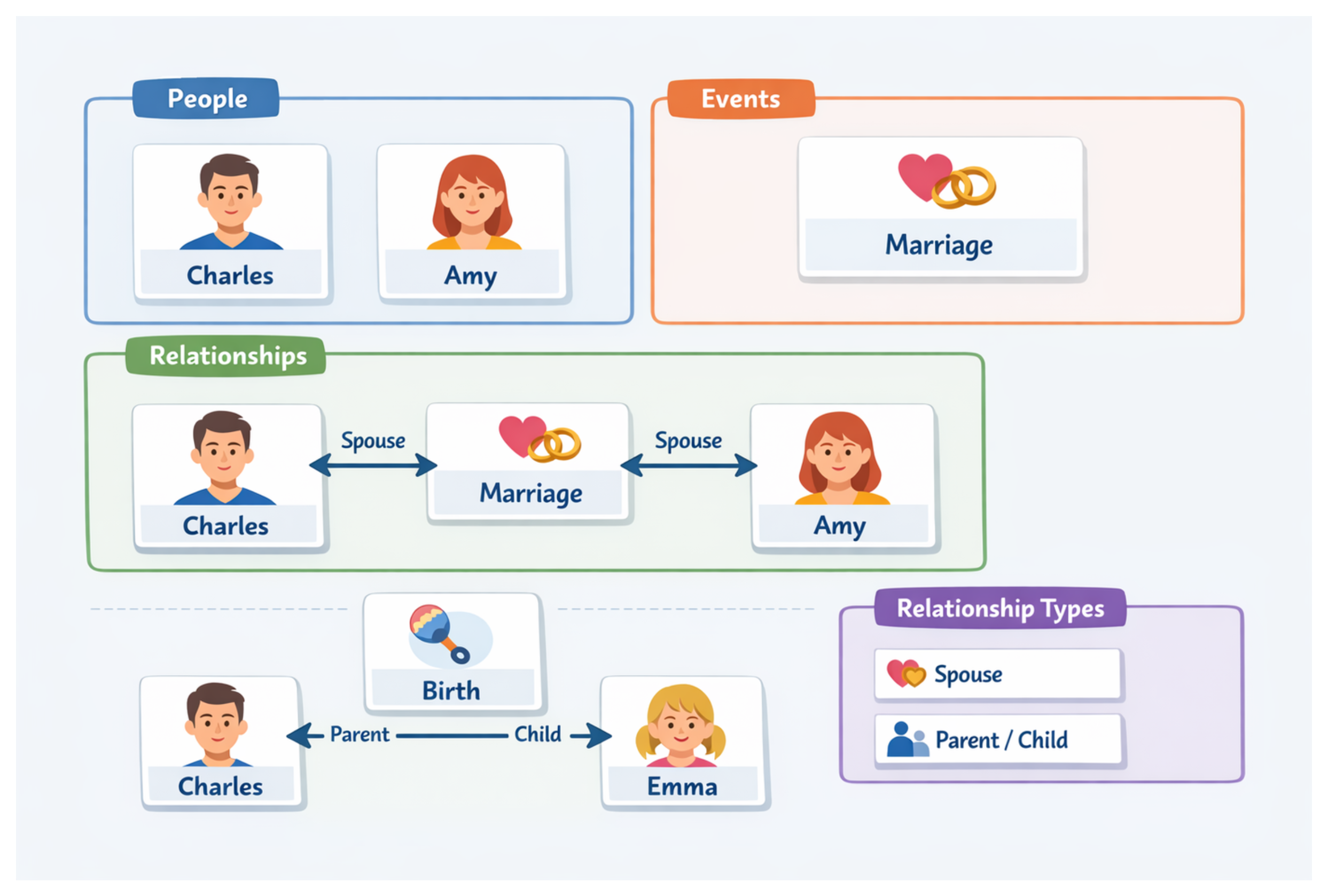
Start with People and Events
Create a People table with one record for each person. Add fields such as Name, Email, and Phone.
Create an Events table with one record for each workshop. Add fields such as Event Name, Date, Location, and Description.
Choose the right table structure
If you only need to know which people are connected to each workshop, the People and Events tables are enough. Add a linked record field called Participants to Events and link it to People.
Use an Event Participants table when each person’s connection to an event needs its own information. For the workshop example, use this table to track each person’s role and registration status.
Create the Event Participants table
Add these fields to Event Participants:
| Field | Type | Purpose |
|---|---|---|
| Person | Linked record to People | The person taking part |
| Event | Linked record to Events | The workshop they are joining |
| Role | Single select | Attendee, speaker, sponsor, or another role |
| Status | Single select | Registered, attended, canceled, or no-show |
| Notes | Long text | Details about this person at this event |
Each record in Event Participants represents one person at one event. Priya’s registration for the April workshop is one record, and her registration for the May workshop is another.
This keeps event-specific details in the right place. Priya’s email belongs in People, the workshop date belongs in Events, and her attendance status belongs in Event Participants.
This middle-table pattern is also called a junction table. For more examples, see how to create a junction table in Airtable.
Once those fields are in place, connect Event Participants to the other two tables. Create the Person field by choosing Link to another record, then select People. Create the Event field the same way and link it to Events.
When you add a link, Airtable creates a matching linked field in the other table. That lets you open a person and see their events, or open an event and see its participants. You can also use lookup, count, and rollup fields to bring related information into the People or Events table.
For example, add a Count field in Events to see how many Event Participants records are linked to each workshop.
If you need to record attendance, use the middle table so each person can have a status for each event. See how to track attendance in Airtable for a complete attendance setup.
If you are tracking ticket types, discounts, or revenue, keep those details on a sales or ticket table linked to the event and person. See how to set up an Airtable base to manage events and track ticket sales.
Add a Relationships table for long-term connections
The Event Participants table records a person’s connection to one event. Use a separate Relationships table when the connection continues after the event.
For example, a workshop may introduce a mentor and a student. If you need to keep that mentor relationship after the workshop, create a Relationships table with fields such as:
- From Person, linked to People
- To Person, linked to People
- Relationship Type, such as Mentor or Student
- Created Through Event, linked to Events
Each record then describes one relationship and its direction. A record can say that Priya is the mentor of Marco, while the event link shows where that relationship began.
For ordinary registrations, attendance, or ticket sales, keep the connection in Event Participants instead.