Airtable Base vs Workspace: What's the Difference and Which to Use
If you are new to Airtable, the relationship between workspaces and bases is confusing at first. The names do not make the hierarchy obvious, and the billing implications catch a lot of teams off guard.
Here is a clear breakdown of what each one is, how they relate, and how to structure yours correctly.
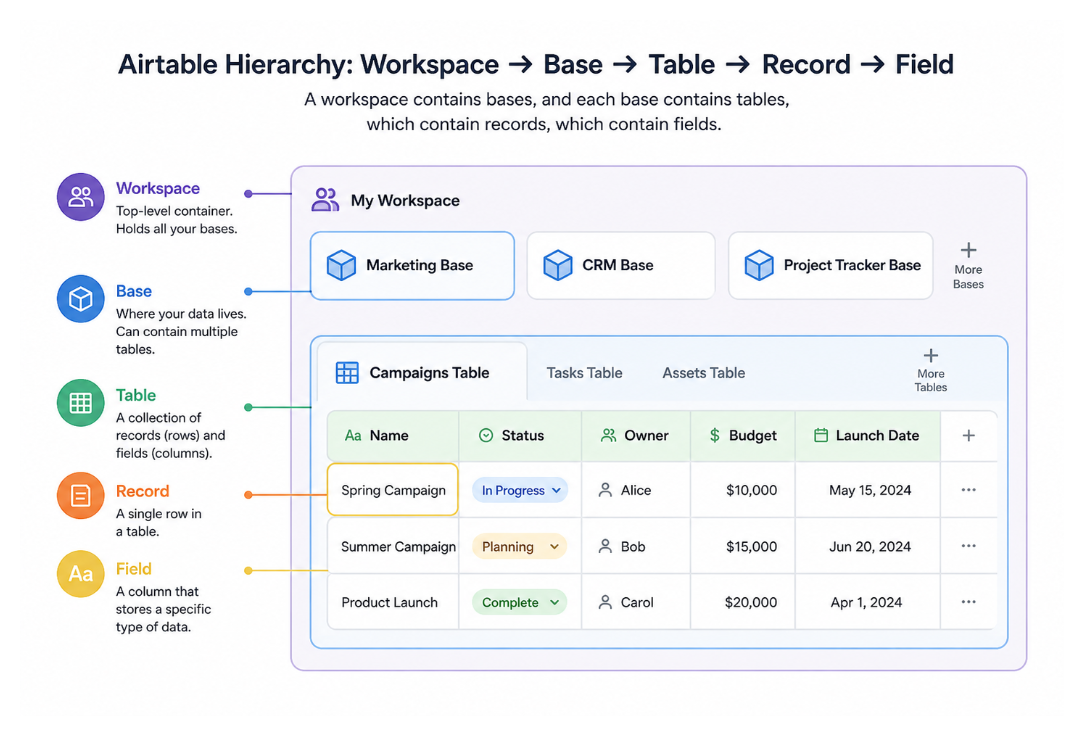
What a Workspace Is
A workspace is a container that holds bases. Think of it as a folder at the top level of your Airtable account. Every base you create lives inside a workspace.
When you first sign up for Airtable, a default workspace is created for you automatically. You can create more workspaces under the same account, and you can be a member of workspaces owned by other people or organisations.
The workspace is also where your Airtable plan lives. When you upgrade to the Team plan, you are upgrading a specific workspace, not your account globally. Bases created inside that workspace get the Team plan features. Bases you create in a different workspace on the Free plan stay on the Free plan.
This trips up a lot of new users. If someone adds you to a paid workspace but you create your own bases in your personal workspace, those personal bases are on the Free plan even though you are a paid user somewhere else.
What a Base Is
A base is where your actual data lives. It contains tables, and tables contain records and fields. Everything you build in Airtable, whether it is your CRM, project tracker, or product catalogue, lives inside a base.
Airtable workspaces are designed to support multiple bases for different projects and teams.
Bases within the same workspace can reference each other through Airtable Sync. But linked record fields only work within a single base. You cannot create a linked record relationship between two different bases. If you need records from one base to connect to records in another, see How to Link Airtable Records Across Different Bases.
How Billing Works (This Is the Important Part)
Airtable billing happens at the workspace level, not the account level. This is the part that confuses most new users.
If someone is a collaborator in two separate paid workspaces, they are billed twice. Once for each workspace.
For example, imagine Sarah is added as an Editor in both the Marketing workspace and the Operations workspace. If both workspaces are on the Team plan, Sarah counts as a paid user in both.
The main exception is the Business and Enterprise Scale plans. These plans support multiple workspaces under the same billing structure, so users can move between workspaces without creating duplicate charges.
Other important billing details:
-
Paid seats are based on edit access. On Team and Business plans, anyone with edit permissions in at least one base within the workspace counts as a billable collaborator. Read-only access, shared views, form submissions, and public share links do not create charges.
-
Record limits apply at the base level, across all tables combined. A base with one table containing 50,000 records and a base with two tables containing 25,000 records each both reach the same limit.
-
Plans belong to workspaces, not individual users. If you create a base in a Free workspace, that base stays on the Free plan even if you are also a collaborator in a separate paid workspace.
This is why many teams accidentally end up paying more than expected. They create multiple paid workspaces when a single shared workspace with multiple bases would have been enough.
When to Use One Workspace vs Multiple
For most teams, one workspace is the right answer. Here is why.
One workspace:
-
Simpler billing, since one paid plan covers everyone
-
Easier collaborator management, because adding someone to the workspace gives them access to all bases
Multiple workspaces make sense when:
-
You are on the Business or Enterprise Scale plan and want to separate departments or clients without double-billing
-
You need to isolate data for security or access control reasons, such as a client workspace that only that client can access
-
You are an agency or consultant managing Airtable for multiple companies, each needing their own workspace
If you are on the Free or Team plan, stay in one workspace wherever possible. Use multiple bases within that workspace to separate different projects or teams.
How Collaborator Access Works at Each Level
You can add collaborators at the workspace level or at the base level. The level you choose affects what they can see.
Workspace collaborators get access to every base in the workspace at whatever role you assign them. Add someone as an Editor at the workspace level and they can edit every base.
Base collaborators get access to a specific base only. They do not see other bases in the workspace and cannot create new bases within it.
This means if you want to give a contractor access to one base without exposing everything else, add them as a base collaborator rather than a workspace collaborator.
For a full walkthrough of the permission levels at each layer and how to configure them, see How to See and Manage User Permissions in Airtable.
How to Create a New Workspace or Base
To create a workspace:
-
Go to your Airtable home screen
-
In the left sidebar, click + New workspace (or the workspace icon)
-
Name it and confirm
To create a base:
-
Open the workspace where you want the base
-
Click + Create in the top-left or the + button inside the workspace
-
Choose how you want to start: blank base, template, import from spreadsheet, or build with AI
You can move a base from one workspace to another at any time. For instructions, see How to Move an Airtable Base to Another Workspace.
Quick Reference
| Workspace | Base | |
|---|---|---|
| What it is | Container for bases | Where your data lives |
| Plan attached here | Yes | No |
| Billing calculated here | Yes | No |
| Contains | Bases | Tables, records, fields |
| Linked records cross this boundary | No | Within-base only |
| Collaborators can be added here | Yes | Yes |
If you are deciding whether to keep everything in one base or split into multiple, that is a different question. See When to Use One Airtable Base vs Multiple for guidance on that decision.