Can You Link Airtable Records Across Different Bases?
This is one of the most common questions people hit when their Airtable setup grows across multiple bases. You have a contacts base and a projects base, and you want to link a project record to the contact it belongs to. Or you have a product catalogue base and an orders base, and you want each order to reference the product it came from.
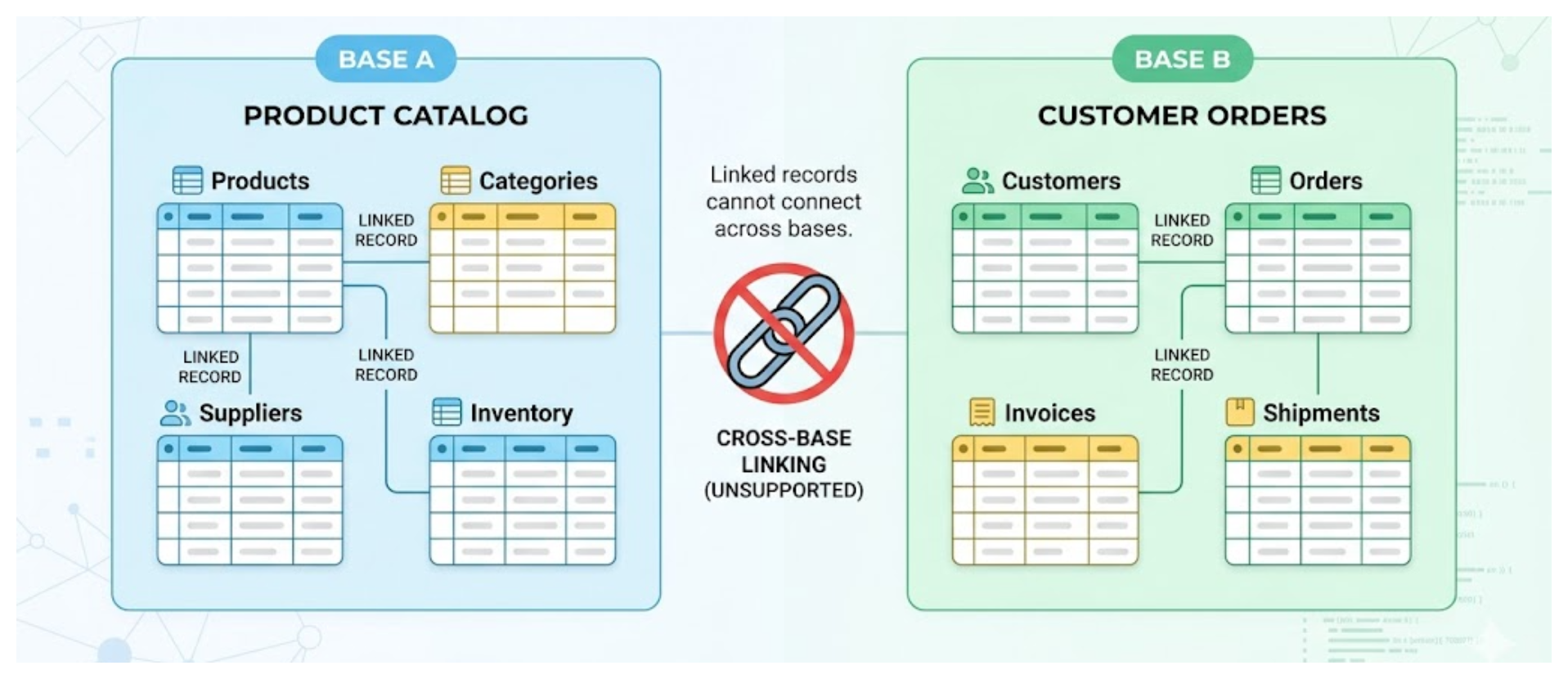
The short answer is: Airtable's linked record field does not support cross-base linking. You can only link records within the same base.
This is a fundamental architectural limit of Airtable, not a missing feature that might appear in settings. The linked record field type creates a relationship between two tables in the same base. There is no equivalent that works across bases.
But there are workarounds, and depending on your use case, one of them will probably get you where you need to go.
Why Cross-Base Linking Does Not Exist in Airtable
Airtable's data model treats each base as an isolated unit. Linked records, lookups, rollups, and formulas that reference other tables all operate within the boundary of a single base. This is also why Airtable Sync creates read-only copies of data rather than live cross-base connections - the underlying system does not support live references across bases.
If this is a hard requirement for your workflow, the most direct solution is to consolidate your data into a single base with multiple tables, and use linked records between those tables. This is usually the right answer if your use case allows it.
Workaround 1: Consolidate Into One Base
Before trying to simulate cross-base linking, consider whether you actually need separate bases. Many Airtable users split data across bases because it feels more organised, not because separate bases are architecturally necessary.
A single base with multiple tables connected by linked records can handle most relational data needs. Contacts, projects, orders, products - these can all live in one base with proper linked record relationships between them.
The advantages of staying in one base are significant: live linked records, lookups that pull data across tables, rollup fields that aggregate related records, and automations that can read and write to any table. None of these work across bases.
For guidance on whether consolidating makes sense for your situation, see When to Use One Airtable Base vs. Multiple.
Workaround 2: Use Airtable Sync to Share a Read-Only Copy
If you genuinely need separate bases, the closest thing to cross-base linking is Airtable Sync. You sync a view from Base A into Base B as a read-only table. Records from Base A appear in Base B, and you can create a linked record field in Base B that links to that synced table.
This gives you something that looks like a cross-base linked record relationship. The limitation is that it is not live or bidirectional in the same way a native linked record field is:
-
The synced table in Base B is read-only - you cannot edit the synced records
-
Changes made in Base A sync through to Base B, but not the other way around
-
Two-way sync (Business and Enterprise plans) allows edits in Base B to flow back, but only to specific fields.
How to set it up
-
In Base A, create a shared view containing the records you want to reference from Base B
-
In Base B, add a new table synced from that Base A view
-
In another table in Base B, create a linked record field that points to the synced table
-
When creating or editing records in Base B, link them to the synced Base A records
This works well when Base B primarily reads from Base A rather than writing back. For example, an operations base that references a product catalogue base, where the catalogue is managed centrally and other teams just reference it.
For a full explanation of how Airtable Sync works, including one-way vs two-way sync and plan requirements, see How to Copy Data From One Airtable Base to Another.
Workaround 3: Use a Shared ID Field and Match Manually or via Automation
For cases where you need to reference records across bases and sync is too limited, a common pattern is to use a shared ID field as the linking mechanism.
Each record in Base A has a unique ID stored in a plain text or number field (not the Airtable record ID, but your own ID like a customer number or order number). Base B stores that same ID in a matching field. You do not get a native linked record relationship, but you can:
-
Filter and find matching records by searching for the shared ID
-
Use an automation or script to keep related data in sync when the ID matches
-
Use Make to look up matching records across bases when a trigger fires
This is more manual than a linked record field, but it works across any two bases and is useful when you need to trigger actions in one base based on events in another.
Which Approach to Use
Use a single base if you can. It is always simpler and gives you the full power of Airtable's relational features.
Use Airtable Sync if you have a genuine reason for separate bases and one base primarily reads from the other. Works well for reference data (products, contacts, locations) that many bases need to see.
Use a shared ID field if you need more flexibility than sync provides, or if you are using external automation tools to orchestrate actions across bases.
For more on linked records and how they work within a single base, see How to Populate a Linked Record Field Using a Lookup Field in Airtable.