If you have been working in the same Airtable base for a while, you probably have fields you are no longer sure about.
Maybe it was a helper field for an old formula. Maybe you created it while testing an automation. Or maybe nobody seems to use it anymore.
You want to delete it, but there is one problem:
What if something else in the base still depends on it?
Instead of trying to remember everywhere the field might be used, Airtable has a dependency feature that can help you check.
Use Show dependencies before deleting a field
Right-click the field you are thinking about deleting and choose Show dependencies.
Airtable will show you other parts of the base that depend on that field.
Dependencies can include things like:
- Automations
- Other fields
- Interfaces
- Syncs
- Views
For example, a field might look unused in your Grid view but still be referenced by a formula or used in an automation.
That is exactly the kind of thing you want to find before deleting it.
If Airtable shows dependencies, go through them first and decide whether those parts of the base still need the field.
Use Manage fields when cleaning up multiple fields
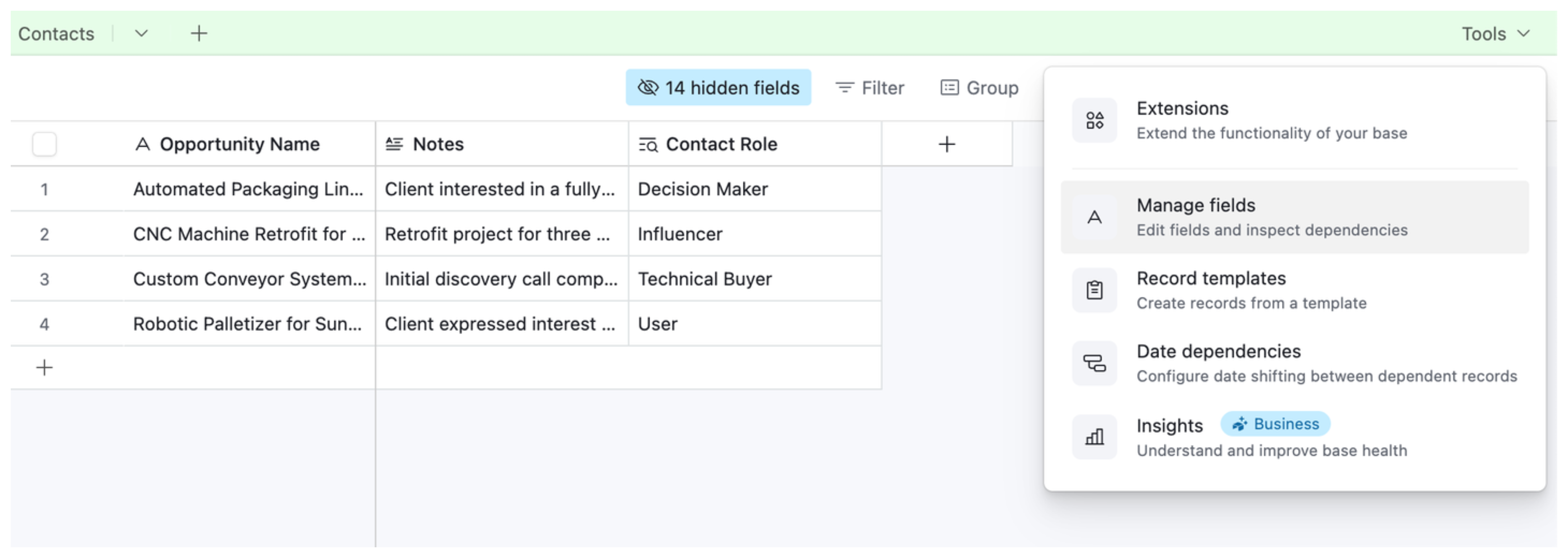
If you are reviewing a lot of fields, I would use Manage fields instead.
Open the menu next to the table name and select Manage fields.
This gives you a list of the fields in that table.
You can then use the Dependencies filter to find fields connected to:
- Automations
- Configurations
- Fields
- Interfaces
- Syncs
- Views
This is much easier than checking fields individually when you are doing a larger cleanup.
No dependencies does not always mean unused
There is one important limitation to keep in mind.
Airtable can show you dependencies inside Airtable, but that does not necessarily tell you whether an external tool is using the field.
For example, you might have:
- Make scenarios
- Zapier automations
- Custom API integrations
- External scripts
using that field.
Airtable's dependency checker may not know about those external workflows.
If you use external integrations, check those before deleting the field as well.
One thing I like doing is adding something like "Used in Make" to the field description when a field is important to an external automation. It makes future cleanup much easier.
Last modified time can give you another clue
If you are still unsure about a field, another option is to monitor it before deleting it.
Create a Last modified time field and configure it to watch the field you are considering removing.
Then leave it for a while.
If the field has not been modified for weeks or months, that gives you another indication that it may no longer be actively used.
I would not use this alone to decide whether a field is safe to delete. A field can still be important even if its value rarely changes.
But combined with the dependency check and a review of external integrations, it can help when you are unsure.
You can restore a recently deleted field
If you do accidentally delete the wrong field, Airtable keeps deleted fields in the base trash for 7 days.
A Creator can open the base trash and restore the field during that period.
I still prefer checking dependencies first rather than relying on the trash, but it gives you a short recovery window if you make a mistake.
For fields you are uncertain about, you can also simply hide the field from the views where it is no longer needed and come back to it later instead of deleting it immediately.