How to Use Conditional Logic in Airtable Forms
Airtable form conditional logic lets you show a question only when it applies to the person filling out the form.
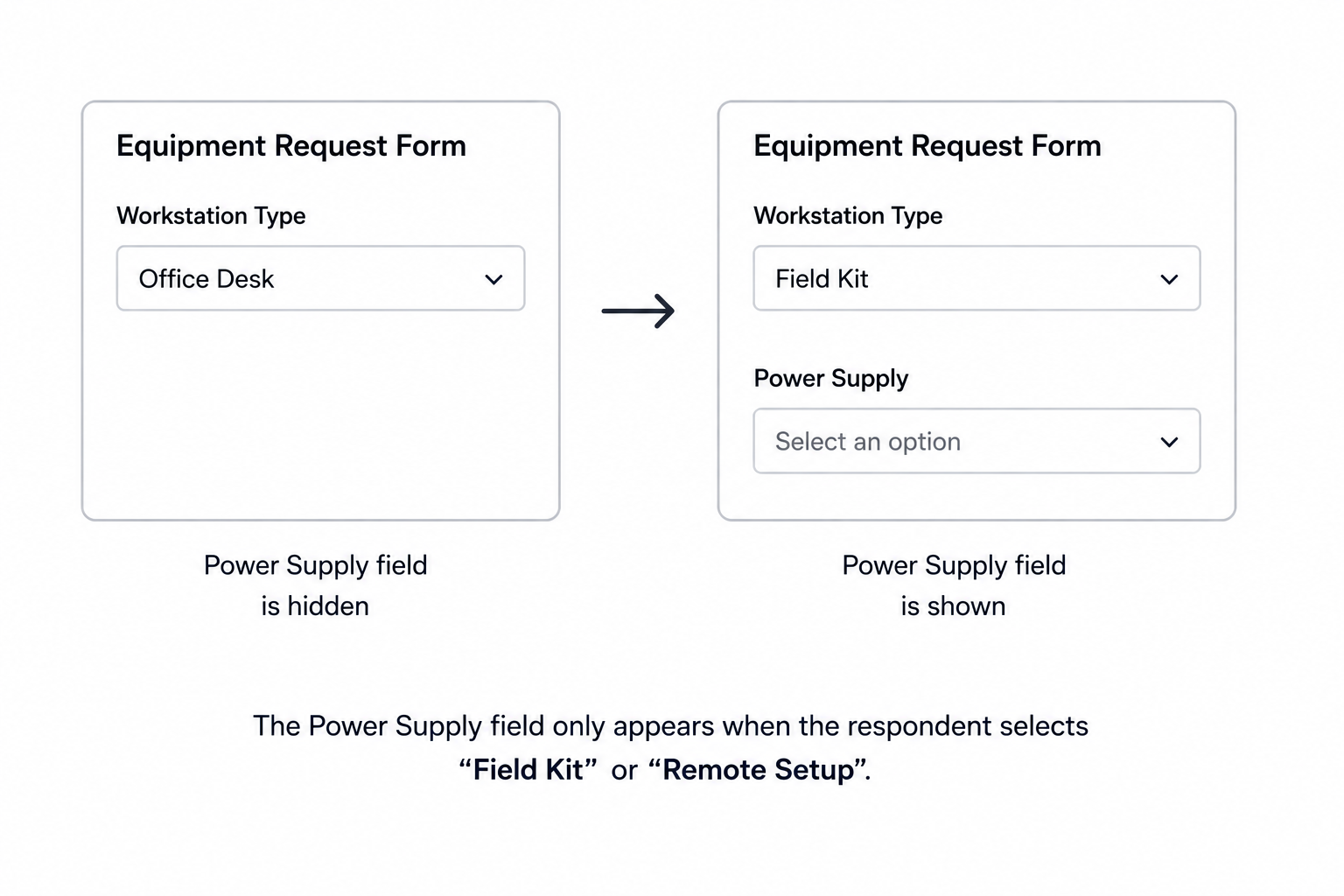
I’ll use an equipment request form as the example. The form asks what type of workstation someone needs. People choosing a Field Kit or Remote Setup must also answer a Power Supply question, while people choosing Office Desk do not need to see it.
Add the fields to the form
Create these fields in the table that receives the form submission:
- Workstation Type, a single select with Office Desk, Field Kit, and Remote Setup
- Power Supply, the question that only applies to Field Kit and Remote Setup
Open the form from the Forms section of your base and add both fields.
Add the conditional rule
Click Power Supply in the form builder and open its visibility settings. Add a rule that shows the field when Workstation Type is Field Kit.
Add another rule for Remote Setup. Use Or because either answer should show the Power Supply question.
Preview the form and choose each workstation type. The question should stay hidden for Office Desk and appear for the other two choices.
You can add more conditions when a question depends on more than one answer. For example, show a field when Workstation Type is Remote Setup and Country is United States.
Conditional fields are available on all Airtable plans. Conditional groups, which let you show several fields together, are available on Business and Enterprise Scale.
Show several fields together
If Field Kit requires several extra answers, put those fields in a form group:
- Power Supply
- Battery Requirements
- Equipment Location
- Connectivity
Apply the visibility rule to the group instead of repeating it on every field. This option is available on Business and Enterprise Scale. On Free and Team, add the rule to each field separately.
Know what conditional logic changes
Conditional logic changes what the person sees while filling out the form. It does not protect sensitive information, so do not use it to hide data from someone who already has access to the base.
It also does not create separate pages or send the person down different form paths. The form stays on one page and shows or hides fields as earlier answers change.
If you need multiple pages, branching paths, live calculations, or validation based on a running total, use a form tool such as Fillout. For an example involving a total that changes while someone fills out the form, see how to show or hide Airtable form fields based on a running total.