How to Add Multiple Records Using a Single Form in Airtable
A standard Airtable form creates one record for each submission. If the form lets someone select several existing linked records, you can use an automation to create one new record for each selection.
I’ll use an order form as the example. A customer submits one order and selects several products that already exist in Airtable. The automation then creates one Order item record for each product, so the order has a separate row for every item.
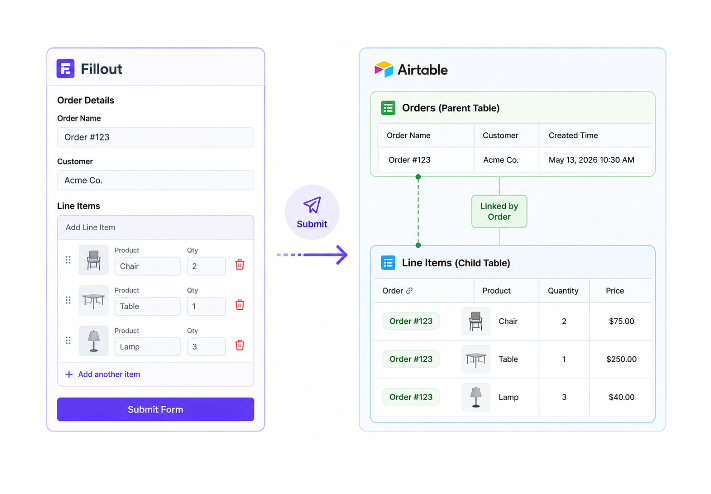
Set up the three tables
Keep the products in Products, the form submissions in Orders, and the individual items in Order items.
In Orders, add a linked record field called Products that links to the Products table. Turn on Allow linking to multiple records, then add that field to the form so the customer can choose more than one product.
In Order items, add two linked record fields:
- Order, linked to Orders
- Product, linked to Products
Add any other fields that each order item needs, such as Quantity or Price.
Create one order item for each selected product
Create an automation with the When record is created trigger for Orders. The form fills in the linked products when it creates the order, so the automation can use that field as its list.
Add a Repeating group and choose Products from the trigger as the input list. Airtable will run the actions inside the group once for each linked product.
Inside the repeating group, add a Create record action for Order items. Map the fields like this:
- Order: the record ID from the trigger
- Product: Current item > Airtable record ID
- Quantity and other order details: the matching values from the Orders trigger
When the customer submits the form, Airtable creates one Orders record first. The repeating group then creates one Order items record for each selected product. You do not need a formula to count the products or a script to loop through them.
For the current setup, see Airtable’s documentation on repeating groups of automation actions. The same pattern also works when you need to create one child record for each selected inventory item, as shown in How to Bulk Select and Assign Inventory Items in Airtable.
When you need Fillout instead
The automation above works when the customer chooses products that already exist in Products. It does not let the customer enter several new line items, each with its own product name, quantity, and notes, during the same Airtable form session.
If the customer needs to enter those line items in one form, use a form with a repeating or linked-record section instead. Fillout can create the order and the new linked records from one form.
That is a different workflow from selecting existing products and splitting them into order items after the submission.