How to Let Users Add New Options in Single Select Fields in Airtable Forms
Let's say you are managing lab submissions in Airtable.
You have a Sample ID single select field with all your existing Sample IDs, and you include that field in your Airtable form.
Someone filling out the form can simply select their Sample ID from the list.
But what happens when they need to submit a new Sample ID that is not already there?
Ideally, they could add the new option directly from the dropdown.
Airtable forms do not let people filling out the form create new single select options directly.
But you can work around this with another field and an automation.
Add an Other option
Start by adding an option called Other to your Sample ID single select field.
Then create a single line text field called New Sample ID.
Add both fields to your form.
You can then use conditional visibility so New Sample ID only appears when someone selects Other.
The form now works like this:
If their Sample ID already exists, they select it normally.
If it does not exist, they select Other and enter the new Sample ID in the text field.
Add the new option with an automation
The next step is to take the value they entered and add it to your Sample ID field.
Create an Airtable automation using When record matches conditions as the trigger.
Set the condition to:
New Sample ID is not empty
Then add an Update record action.
Update the same record that triggered the automation and set the Sample ID field to the value from New Sample ID.
So if someone enters:
SAMPLE-105
the automation updates the Sample ID field with SAMPLE-105.
Because that value did not previously exist in the single select field, Airtable adds it as a new option.
The next person who opens the form will now see SAMPLE-105 as one of the available options.
You do not need a script for this. The regular Update record automation action can handle it.
Be careful with user-entered values
The main thing to keep in mind is that whatever someone enters can become a new option.
For example, you could end up with:
SAMPLE-105
and
Sample 105
as two different options because someone entered the value differently.
If your Sample IDs follow a strict naming convention, you may want to review new values before allowing them to become part of your permanent list.
For a simple internal form where people know how the IDs should be entered, the automation approach works well.
Use Fillout for a more direct experience
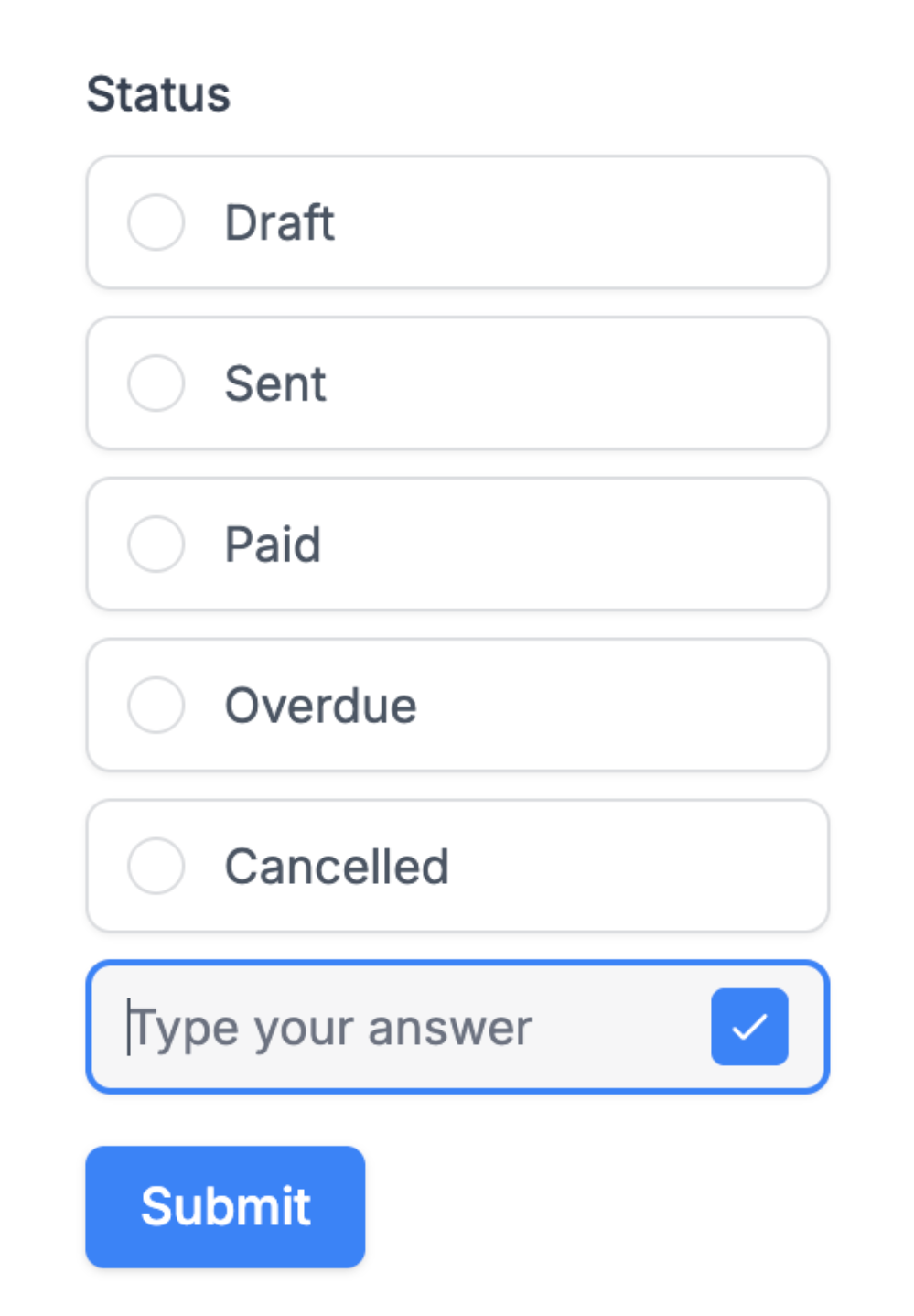
If you want people to be able to add new options directly while filling out the form, you can also use Fillout.
Fillout connects to your Airtable table and lets people select an existing option or enter a new one when the option they need is not available.
This gives them a cleaner experience because you do not need the separate Other and New Sample ID fields.
For Airtable's native forms, use the Other + text field + automation workaround.