How to Send Automated Follow-Up Emails in Airtable
If you send an email and need to follow up later, Airtable can check your records each day and send the next message when it is due.
I’ll use a Leads table as the example. Each lead has an email address, the date of the first email, and a status that tells Airtable whether to send the next follow-up.
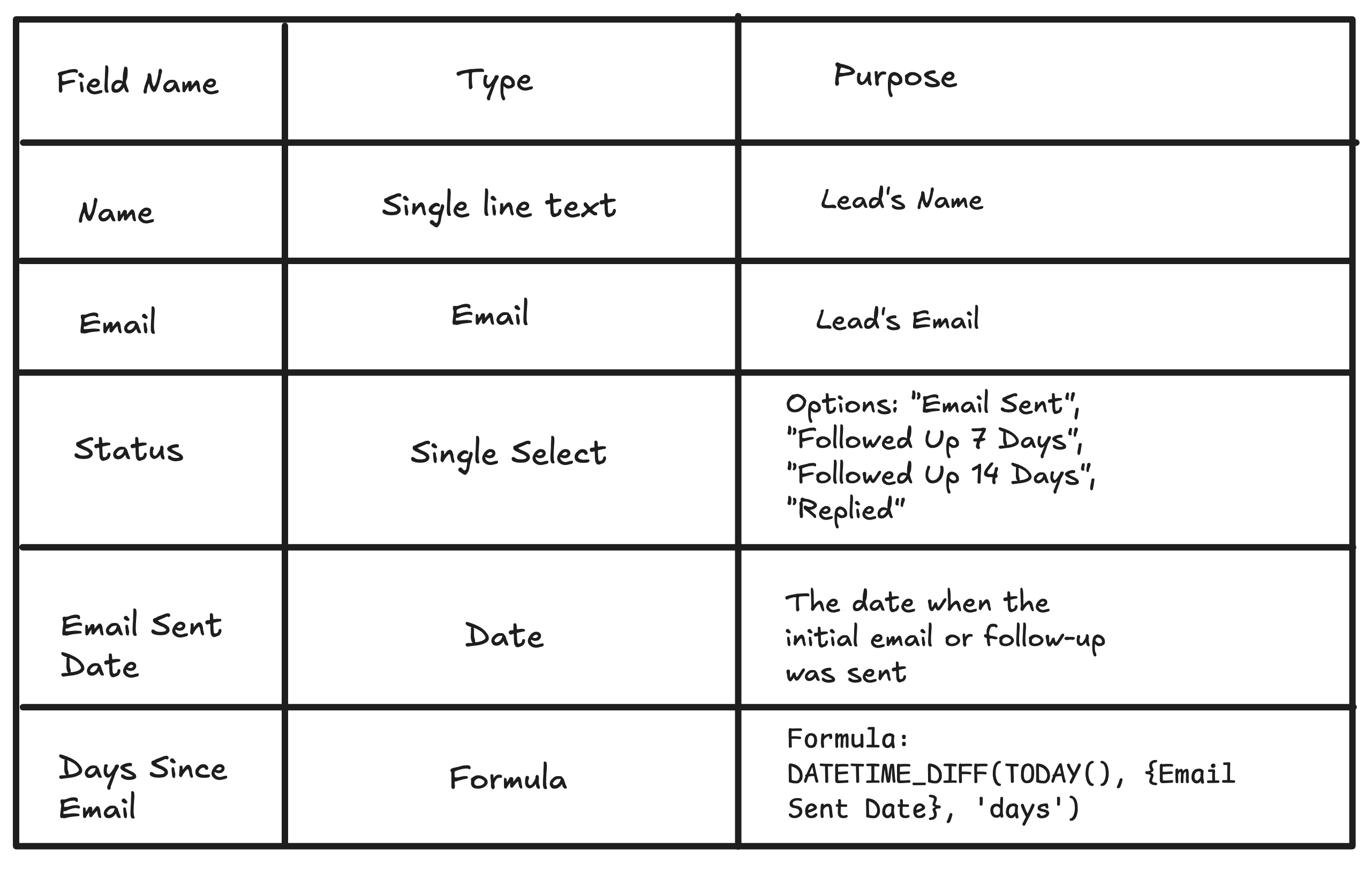
Add the follow-up fields
Add these fields to the Leads table:
| Field | Type | Purpose |
|---|---|---|
| Name | Single line text | The contact’s name. |
| Where Airtable sends the message. | ||
| Status | Single select | Shows where the contact is in the sequence. |
| Email Sent Date | Date | The date of the first email. |
| Days Since Email | Formula | Counts the days since the first email. |
Use these Status options:
- Email sent
- Followed up once
- Followed up twice
- Replied
- Closed
Set Days Since Email to:
DATETIME_DIFF(TODAY(), {Email Sent Date}, 'days')
Send the first follow-up
Create an automation with At a scheduled time as the trigger. Set it to run once a day.
Next, add Find records and choose the Leads table. Find records where:
- Status is Email sent
- Days Since Email is greater than or equal to 7
These conditions leave out people who have replied or already received this follow-up.
Add a Repeating group using the records found in the previous step. Inside it, add Send email and use the current record’s Email and Name fields.
For example:
- Subject:
Following up on my last email - Message:
Hi {Name}, I wanted to follow up on my last email. Please let me know if you have any questions.
After Send email, add Update record and change the current record’s Status to Followed up once. Without this update, the same record will match again the next day.
Send another follow-up later
Create a second automation for the next message. Use the same daily trigger, Find records, repeating group, email, and update steps.
This time, find records where:
- Status is Followed up once
- Days Since Email is greater than or equal to 14
Send the second message, then change Status to Followed up twice. Add another stage only when the sequence genuinely needs it.
Stop the sequence when the contact replies
When someone replies, change their Status to Replied. They will then stop matching the follow-up conditions.
You can update this status manually, or connect the reply process to an email workflow that finds the matching lead and changes the status for you. The important part is that the record no longer has an active follow-up status.
Test the sequence
Add a test lead with your own email address. Set Email Sent Date far enough in the past for the first condition to match, then test each automation step in order.
Check the email before turning the automation on. After the test, confirm that the status changed to Followed up once. Run the search again and make sure the same record is no longer included.
For date-based reminders such as contract or license renewals, see how to automate expiry date reminders in Airtable. For a general reminder setup, see how to send reminders in Airtable.