How to Send Reminders in Airtable
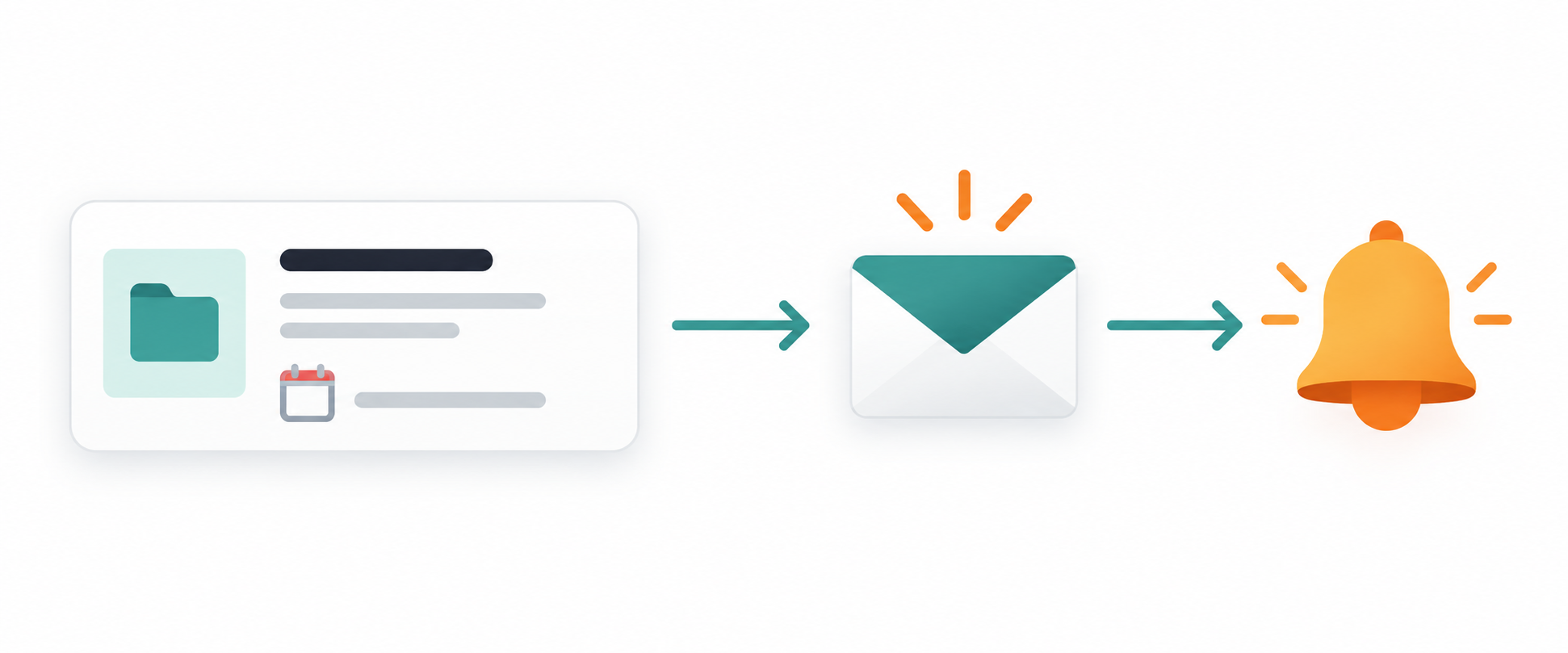
Yes, Airtable can send reminders by email. Create an automation that checks your table on a schedule, finds the records that are due, sends the message, and marks those records as handled.
I’ll use project deadlines as the example. Each project has a deadline, an email address for the person responsible, and a checkbox that stops the same reminder from being sent again.
Add the reminder fields
Add these fields to a Projects table:
| Field | Type | Purpose |
|---|---|---|
| Project Name | Single line text | Names the project. |
| Deadline | Date | Stores when the project is due. |
| Assigned To | Receives the reminder. | |
| Status | Single select | Shows whether the project is still active. |
| Reminder Sent | Checkbox | Stops the same project from sending another reminder. |
Add Complete as one of the Status options. Leave Reminder Sent unchecked until Airtable sends the reminder.
Find records that need a reminder
Create an automation and choose At a scheduled time as the trigger. Set it to run once a day.
Add a Find records action and choose the Projects table. Use these conditions:
- Deadline is within the next 7 days
- Status is not Complete
- Reminder Sent is unchecked
The deadline must contain a date for the record to match. Test this action and check that it finds the projects you expect.
Send the email and mark the record
Add a Repeating group after Find records and use the records found in the previous step as its input. This lets Airtable send one email for each project.
Inside the repeating group, add Send email. Use the current project’s Assigned To field as the recipient, then include the project name and deadline in the message.
After Send email, add Update record. Choose the current project record and check Reminder Sent.
The project stays within the seven-day window for several days. The checkbox keeps it out of the next daily search, so it does not receive the same reminder again.
If the deadline changes and you want to send another reminder, update the deadline and uncheck Reminder Sent.
Send more than one reminder
For a contract, license, or subscription that needs reminders at several stages, use a separate checkbox for each message, such as 30-Day Reminder Sent, 7-Day Reminder Sent, and 1-Day Reminder Sent.
Create one automation for each stage. Give each automation its own date range and checkbox so a record receives one reminder at each stage.
For example, the 7-day automation can find records where the expiry date is between today and seven days from now, while 7-Day Reminder Sent is unchecked.
Check the email limits for your plan
On the Free plan, email recipients need to be verified collaborators in the base. Paid plans allow emails to people outside the base, subject to each plan’s daily recipient limit.
Test the automation
Create a test project with a deadline within the next seven days. Add your own email address, leave Status active, and leave Reminder Sent unchecked.
Test Find records, then test Send email and Update record. After the update, run Find records again. The test project should no longer appear.
For several follow-up emails after an initial message, see how to send automated follow-up emails in Airtable. For contracts, licenses, and other expiry dates, see how to automate expiry date reminders in Airtable.