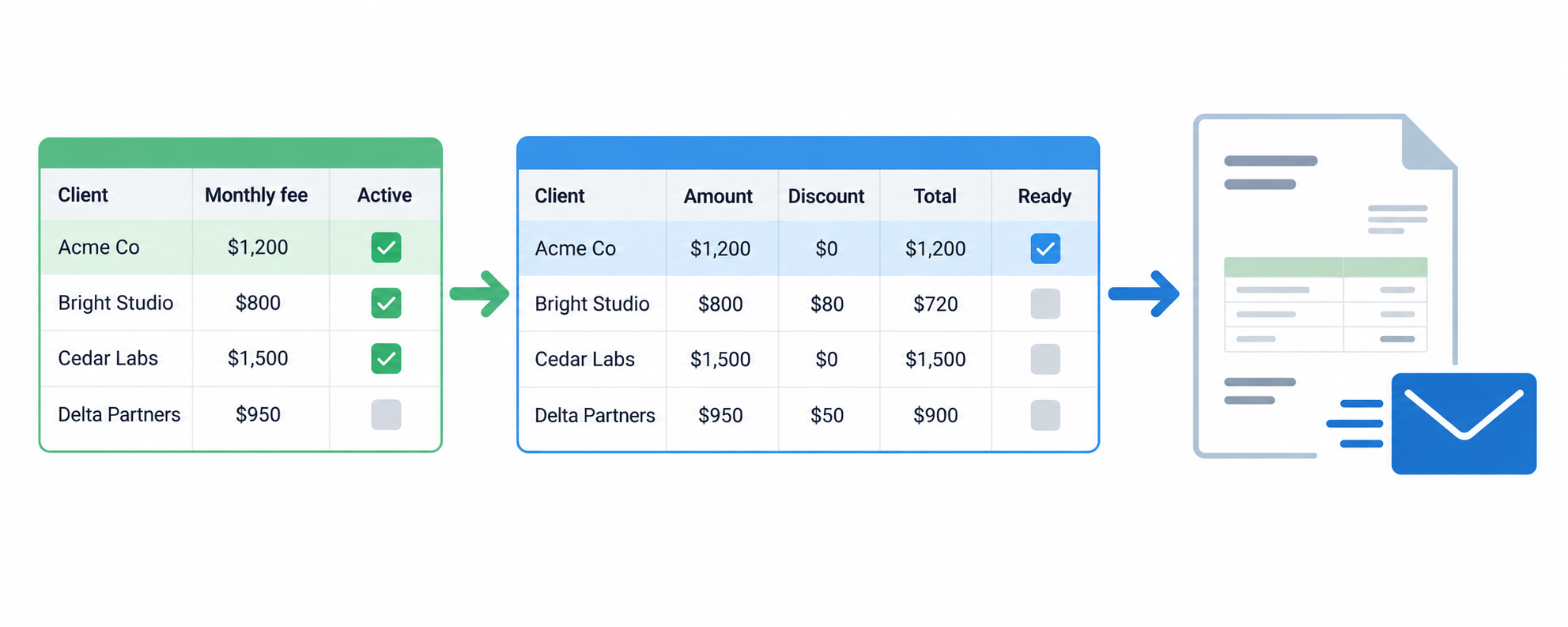
Want Airtable to create and email your monthly invoices? Keep your clients and agreed prices in Airtable, then create a separate invoice record for each client every month. This keeps old invoices unchanged when you update your prices later.
Create the Clients and Invoices tables
In Clients, create one record for each client. Add these fields:
| Field | Type | What it stores |
|---|---|---|
| Client | Single line text | The client or business name |
| Where the invoice should be sent | ||
| Package | Single select or text | The client's package |
| Monthly fee | Currency | The agreed recurring price |
| Active | Checkbox | Whether this client should receive a new invoice |
Create an Invoices table with one record for each monthly invoice. Add Client as a linked record field pointing to Clients, then add:
| Field | Type | What it stores |
|---|---|---|
| Client | Linked record to Clients | The client receiving the invoice |
| Client email | Lookup | The email from the linked client |
| Created time | Created time | When the invoice record was created |
| Billing month | Formula | The month covered by the invoice |
| Amount | Currency | The fee copied when the invoice is created |
| Discount | Currency | An optional adjustment for this invoice |
| Total | Formula | The amount after the discount |
| Invoice PDF | Attachment | The finished PDF |
| Ready to send | Checkbox | Approval to send the invoice |
| Sent | Checkbox | Prevents the same invoice being sent twice |
Set Total to:
{Amount} - {Discount}
If Discount is empty, Airtable treats it as zero. You can add an invoice number with an Autonumber field and format it with a formula. See how to auto-generate invoice numbers in Airtable.
Create the invoices on the first of the month
Create an automation with the At scheduled time trigger. Set it to run monthly on the first day of the month.
The scheduled trigger has no client record attached to it, so the automation needs to find the clients first. Add a Find records action that searches the Clients table for records where Active is checked.
Add a Repeating group after Find records. Use the list of records returned by Find records as the input list. The actions inside the repeating group will run once for each active client.
Inside the repeating group, add a Create record action for the Invoices table. Map the current client's record ID to Client, and map the current client's Monthly fee to the invoice's Amount field.
The value in Amount is now stored on the invoice record. If you change a client's monthly fee next month, this invoice will keep the amount that was copied into it when the record was created.
Set Billing month to:
DATETIME_FORMAT({Created time}, "MMMM YYYY")
This gives every invoice a month without asking someone to enter it manually.
Test the automation with one active client before turning it on. Confirm that it creates one invoice and copies the correct fee. Then check that the repeating group creates one invoice for every active client, not one invoice containing a list of clients.
Add discounts before sending
If discounts are occasional, enter them in the Discount field on the new invoice record. Do not change the client’s Monthly fee just for one discounted month, because that would change the price used for future invoices.
After checking the amount and discount, tick Ready to send. This gives you a short review step before an invoice reaches a client.
Create the invoice PDF
Page Designer can create a printable invoice layout inside Airtable. Add the client, package, invoice number, billing month, amount, discount, and total to the layout, then print the record and save it as a PDF.
Page Designer is useful when you create the invoices yourself. It does not create and attach a PDF automatically when an Airtable automation runs.
For automatic PDF creation, use a document tool such as DocuMint or DocsAutomator. Connect the Invoices table, map the invoice fields to a template, and save the finished PDF in Invoice PDF.
If the document tool needs another service to start the workflow or return the file to Airtable, Make can connect the invoice record, the template, and the attachment field.
For more detail on creating and attaching PDFs, see how to create PDFs from Airtable records and attach them back automatically.
Email each finished invoice once
Create a second automation with the When record matches conditions trigger in the Invoices table. Set the conditions to:
- Ready to send is checked
- Invoice PDF is not empty
- Sent is unchecked
Add a Send email action. Use Client email as the recipient, add the invoice number to the subject, and select Invoice PDF in the action's Attachments section.
After the email action, add an Update record action and check Sent for the triggering invoice. The next time Airtable checks the conditions, that invoice will no longer qualify and will not be sent again.
For the exact attachment settings, see how to email a PDF attachment from Airtable.
The finished workflow is:
First of the month → invoices created → discounts reviewed → PDFs attached → invoices emailed → Sent checked
This keeps each month's price, discount, PDF, and sending status on its own invoice record. Older invoices stay unchanged when a client's package or monthly fee changes later.