How to Reference Data Across Tables in Airtable (The XLOOKUP Equivalent)
In Excel or Google Sheets, when you need a value from another table based on a matching key, you use XLOOKUP or VLOOKUP. In Airtable, there is no such formula. The equivalent is a two-step approach: a linked record field to create the relationship, and a lookup field to pull the value through it.
Once set up, it works better than XLOOKUP. The value updates automatically when the source changes, and there is no formula to break.
The Pattern: Linked Record plus Lookup
Here is the most common scenario. You have a Companies table where each record has a NAF code stored as text. You have a separate NAF Codes table where each code has a plain-language description. You want each company record to show the description for its NAF code without manually copying it.
Step 1: Convert the code field to a linked record
In the Companies table, click the NAF code field to open its settings. Change the field type from Single line text to Linked record, and point it at the NAF Codes table.
Airtable will try to automatically match existing text values to records in the NAF Codes table. For clean data where the codes match exactly, most records will link automatically. For any that did not match, click the cell and select the correct record manually.
Once linked, the NAF code field in each company record now references the corresponding record in the NAF Codes table rather than storing a standalone text value.
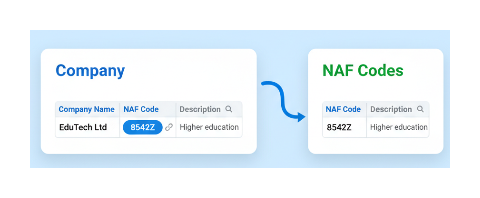
Step 2: Add a lookup field to pull the description
Still in the Companies table, add a new field and choose Lookup as the field type. Configure it to look up through the NAF code linked record field and return the Description field from the NAF Codes table.
The Companies table now shows the full description next to each record. When a description changes in the NAF Codes table, every company record that references that code updates automatically.
This is the Airtable equivalent of XLOOKUP. The NAF Codes table is the single source of truth, and the Companies table always reflects the current values.
Pulling Multiple Values Through a Link
A lookup field can return any field from the linked table, not just one. If the NAF Codes table has multiple fields you need in Companies, add a separate lookup field for each one. Each lookup points through the same linked record field but returns a different source field.
For example:
- Lookup 1: NAF code linked field > Description
- Lookup 2: NAF code linked field > Category
- Lookup 3: NAF code linked field > Tax rate
All three appear in the Companies table and all update automatically from the NAF Codes table.
When a Record Links to Multiple Values
If a company can have more than one NAF code, change the linked record field to allow multiple records. The lookup field then returns all values from all linked records, comma-separated by default.
This is useful for tagging or categorisation: a company linked to three industry codes can show all three descriptions in one lookup field.
For aggregating numeric values across multiple linked records (totalling order amounts, averaging scores), use a Rollup field instead of a lookup. Rollup fields apply an aggregation function like SUM, AVERAGE, or COUNT across all linked records.
When to Use a Formula Instead
The linked-record-plus-lookup pattern requires both tables to be in the same base. If the reference data is in a different base, you cannot create a linked record relationship across bases. In that case, syncing the reference table into the same base first, then linking to the synced copy, is the workaround.
For simple logic that does not need a reference table converting a status code to a label, calculating a category from a number range, combining field values a Formula field is simpler. Use the IF() or SWITCH() function to map values directly:
SWITCH({Status Code},
 "A", "Active",
 "I", "Inactive",
 "P", "Pending",
 "Unknown"
)
This avoids the need for a reference table entirely when the mapping is small and rarely changes. If the mapping changes frequently or has many values, the linked record approach is easier to maintain because you update the reference table rather than the formula.
For building more complex multi-table structures where many records in one table relate to many records in another, see how to create a junction table in Airtable for the pattern that handles true many-to-many relationships.