You book an appointment with a customer and send them a confirmation email with the date and time.
The problem is that the appointment is still only sitting in their inbox.
Unless they add it to their calendar, there is nothing there to remind them when the appointment gets closer.
There are two ways I would handle this with Airtable.
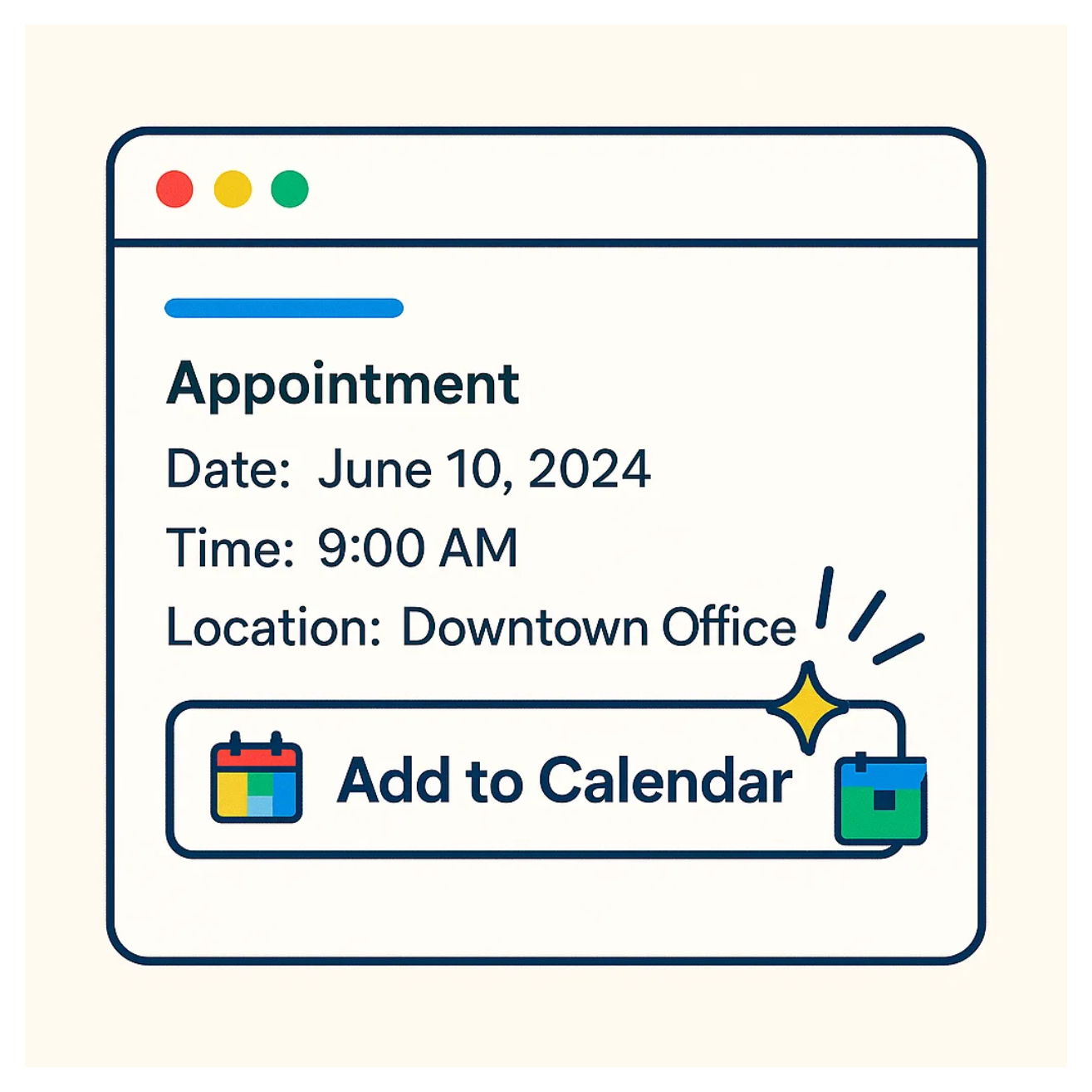
Option 1: Create a calendar event from Airtable
The simplest option is to create the calendar event automatically.
Airtable Automations has native actions for both Google Calendar and Outlook Calendar.
Your automation could look like this:
Appointment becomes Confirmed → Create calendar event
In the Create event action, map information from your Airtable record such as:
- Appointment title
- Start time
- End time
- Location
- Description
- Customer email
Add the customer's email as an attendee.
When the automation runs, Airtable creates the event in the connected calendar and the customer receives a calendar invitation.
This works well if the appointment should also exist on your calendar.
The downside is that you are creating every appointment on the calendar connected to the automation.
If you only want to give the customer an easy way to add the appointment to their own calendar, I would use the second option.
Option 2: Send a click-to-add calendar link
Instead of creating the calendar event for the customer, you can put an Add to Calendar link in the confirmation email.
The email could say:
Your appointment is confirmed for September 1 at 9:00 AM.
Add to Calendar
When the customer clicks the link, their calendar opens with the appointment details already filled in. They can then save the event to their own calendar.
For this setup, I would use an automation tool like Make together with a calendar link service such as Calendarlink.
The workflow would be:
Airtable → Calendarlink → Confirmation email
Airtable provides the appointment information.
Calendarlink creates the calendar event and add-to-calendar link.
Then your automation includes that link in the confirmation email sent to the customer.
This gives the customer an easy way to add the appointment without creating every customer appointment on your own calendar.
Which option should you use?
If the appointment should appear on your calendar as well, use Airtable's native Google Calendar or Outlook Calendar Create event action and add the customer as an attendee.
If you do not want the appointment added to your own calendar, send the customer an Add to Calendar link instead.
Both remove the need for the customer to manually copy the date, time, and other appointment details from the confirmation email into their calendar.