How to Combine Data from Multiple Sources in Airtable
I’ll use a small finance team as the example. Each month, it receives transaction files from its bank, PayPal, Stripe, and credit card provider. The files contain the same kind of transactions, but their columns have different names. The team wants to bring everything into one Airtable table.
If you want to use those transactions to track account balances as well, see how to build a simple general ledger in Airtable.
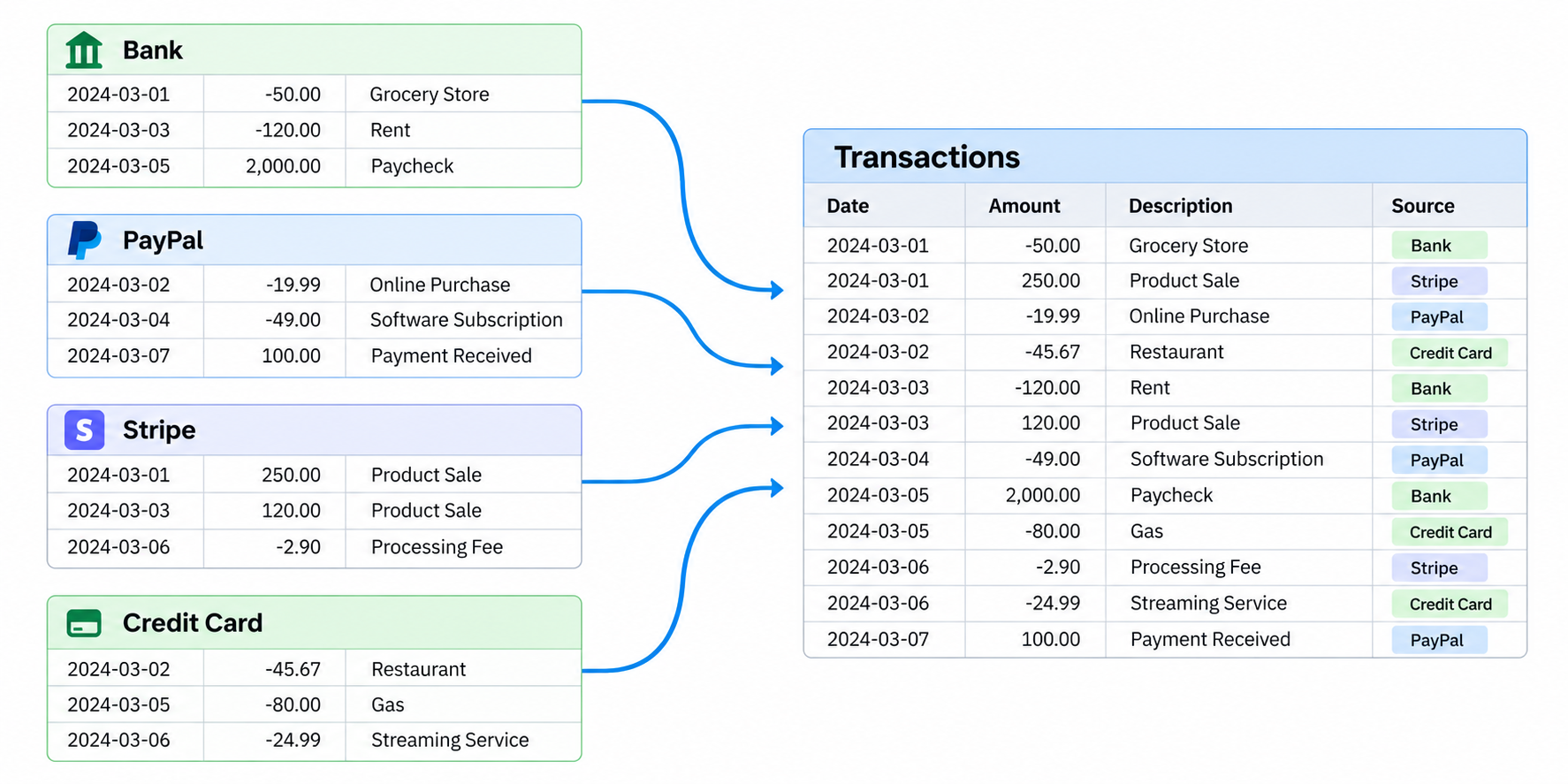
Create the Transactions table
Create a table called Transactions with these fields:
- Transaction ID, if the source provides a unique ID for each transaction
- Date, for the transaction date
- Amount, for the payment or expense
- Description, for the transaction details
- Category, for the type of expense or income
- Source, for values such as Bank, PayPal, Stripe, or Credit Card
The Transaction ID helps Airtable recognize a transaction when you import an updated file later. If the source does not provide one, create a value that stays unique across the table, such as Bank-12345.
Match each file to the Airtable fields
Before importing the files, compare their column names. One file may use Transaction Date, another may use Date, and another may use Posted Date. Map all of them to the Airtable Date field.
Do the same for the amount. Amount Paid and Total can both map to Amount. If one file does not include Category, leave that field empty and fill it in later.
Make sure the values use the same format before you import them. For example, choose whether expenses should be positive or negative, and use the same date format in each file.
Add a Source column to each file and fill it with the name of the provider. This lets you filter the combined table later to see only the Bank, PayPal, Stripe, or Credit Card records.
Import the files into one table
Open the Transactions table and import the first file. When Airtable asks where each column should go, map the file's columns to the fields you created.
Check a few records after the first import. Make sure the dates, amounts, and source values look right before you add the other files.
Then import the next file into the same Transactions table. Map its columns to the same Airtable fields, even when the file uses different names. A column called Total can map to Amount, and Posted Date can map to Date.
For the full import steps, see how to import a CSV, Excel, or Google Sheets file into Airtable.
Keep updated files from creating duplicates
If you import the same file again, Airtable adds its rows as new records. It does not know that a row in the file is an update to a transaction already in the table.
If a later file contains older transactions as well as new ones, use the CSV import extension and turn on Merge with existing records. Select Transaction ID as the matching field, then review the preview before importing. Matching IDs update the existing records, while new IDs create new records.
The CSV import extension is available on paid plans. See how to import updated data into Airtable without creating duplicates for the complete setup.
Keep Airtable sources updated automatically
If the transactions already live in Airtable tables or supported sync sources, you can use multi-source sync to bring them into one destination table automatically. This is useful when the source tables keep changing and you do not want to import them by hand each month.
Multi-source sync lets you map fields from several sources to the same destination fields. It is available on the Team, Business, and Enterprise Scale plans. On Team, changes must be made in the original source rather than in the destination table.
If the data comes from two Airtable bases and you want to show it in one Interface, see how to display data from two Airtable bases in one Interface.
Review the combined data
Once the files are in the table, create views for the way you review the transactions. You could create one view for expenses, one for income, and one for each source.
Group the table by Category, filter it by Date, and use the summary bar to review the totals. The records stay in one table, but the views make the combined data easier to work with.