How to Import Updated Data into Airtable Without Creating Duplicates
You imported your data into Airtable and it looked great. Now the source has changed and you want to bring in the updated version. So you import again.
Airtable creates a second set of records. Every row appears twice.
This happens because Airtable does not know your new import is meant to update existing records. From its perspective, you have uploaded a file and it should create records from it. Unless you tell it exactly how to match new rows to existing ones, it treats everything as new.
What you actually need is a merge - where Airtable finds each row in your file, matches it to an existing record using a unique identifier, and updates it rather than creating a duplicate.
Here are three ways to do that.
Method 1: Use the CSV Import Extension (Built-In Merge)
Airtable offers an official CSV Import extension that supports merging. It is free to use once installed, but installing extensions requires a paid Airtable plan, so it is not available on the free tier.
The key requirement is that your data must have a unique field such as an email address, order ID, product SKU, or customer number that appears in both your file and your existing Airtable records. This is how Airtable knows which record to update.
How to set it up
Step 1: Prepare your file
Export your updated data as a CSV. The CSV Import extension only accepts CSV files, not Excel. If your data is in Google Sheets or Excel, export or download it as .csv first.
Make sure the unique identifier field has the same column header in your CSV as it does in Airtable. Mismatched headers will cause the merge to fail silently.
Step 2: Install the extension
Open your Airtable base and click Tools in the top toolbar, then Extensions, then Add an extension. Search for CSV Import and install it.
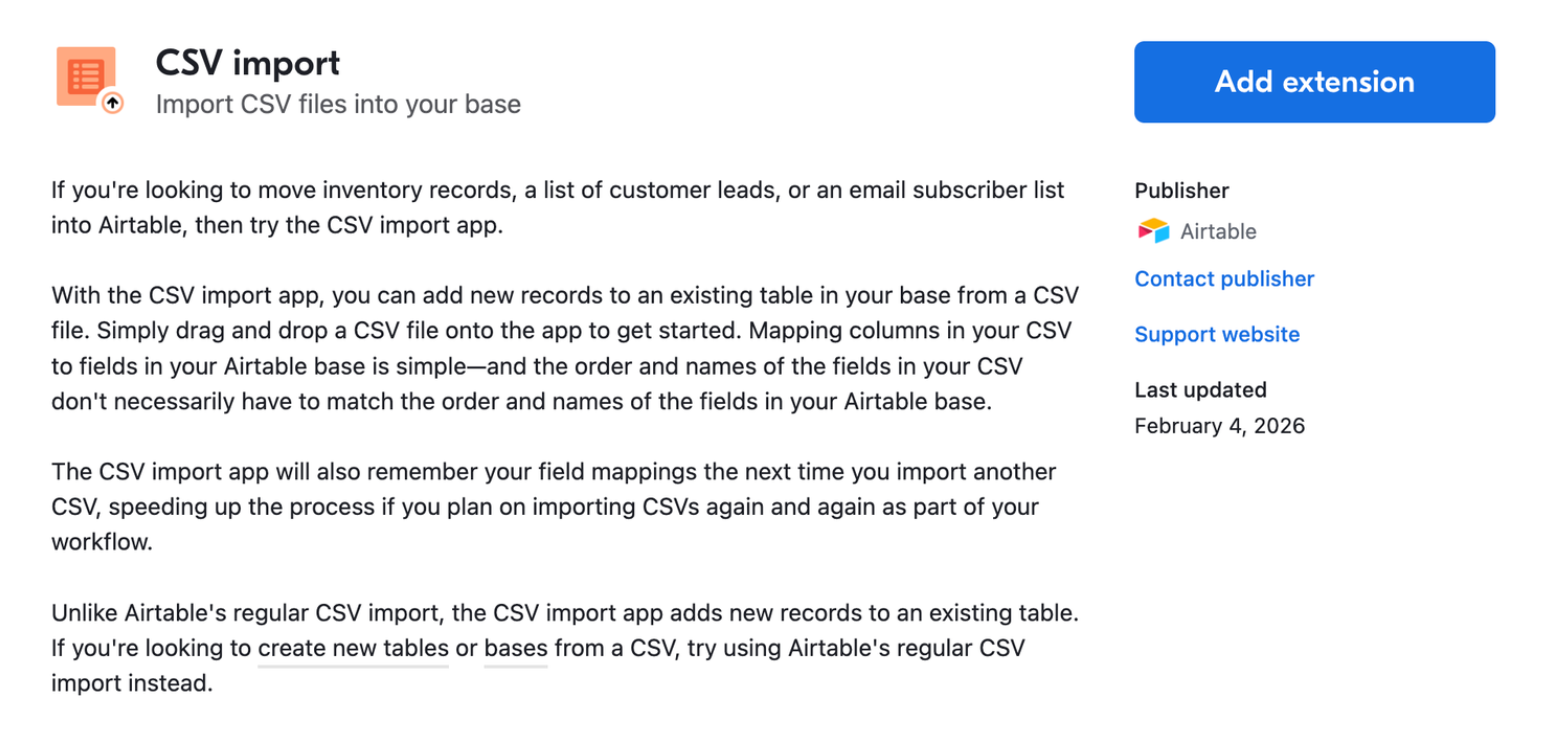
Step 3: Upload your CSV
Open the CSV Import extension and upload your file. Select the table you want to update.
Step 4: Enable merge mode
After uploading, you will see a toggle labelled Merge with existing records. Turn this on.
Once enabled, a dropdown appears asking you to select the field to merge on. Choose your unique identifier field such as the email, order ID, or whatever field uniquely identifies each record.
Step 5: Map your columns and import
Review the column mapping to confirm each column in your CSV maps to the right Airtable field. When everything looks correct, click Import.
Airtable will go through each row:
-
If a record with that identifier already exists, it updates it with the new values
-
If no match is found, it creates a new record
What this method handles well
This is the right method for occasional manual updates such as monthly data refreshes, quarterly exports, or one off corrections. It is fast, requires no automation tools, and is available on all paid Airtable plans.
Limitations
-
CSV files only so Excel and Google Sheets files need to be converted first
-
Manual process so you need to do this each time your data updates
-
No way to delete records that no longer appear in the file so removals have to be handled separately
-
If two records share the same value in your merge field, meaning duplicates in Airtable, the extension will update all of them
Method 2: Automate the Merge with Make
If your data updates regularly such as daily, weekly, or on a schedule, doing the manual CSV import each time gets old quickly. The better approach is to automate the merge using a tool like Make.
These tools connect your data source directly to Airtable and run the merge logic automatically in the background.
How the scenario works
The basic structure in Make is:
-
Trigger: A schedule (daily, hourly, etc.) or a file event (new file uploaded to Google Drive, new row in Google Sheets)
-
Read: Pull the updated rows from your data source
-
Search: For each row, search Airtable for an existing record with a matching unique ID
-
Branch: If a match is found, update that record. If no match, create a new one.
In Make, this translates to:
-
Watch Rows or Search Rows module for Google Sheets as the data source
-
Search Records module for Airtable to find the matching record
-
Update a Record module for matches
-
Create a Record module for new entries
The merge field logic lives in the Search Records step, where you filter by the unique ID value from each row of your source data.
Why this is better for regular updates
Once set up, the scenario runs automatically. You do not need to export a CSV, open the extension, toggle merge mode, or manually trigger anything. The data stays current without manual intervention.
It also handles larger volumes more reliably than the manual extension, since Make can process thousands of records in a single run without timeout issues.
Make has a free tier that covers low-volume automations. For high-frequency updates or large record volumes, a paid plan will be needed.
Method 3: Use Airtable Sync for Live Data Sources
If your data lives in a source that Airtable can connect to natively such as Google Sheets, another Airtable base, or a supported SaaS integration like Salesforce or Zendesk, Airtable Sync is worth considering instead of an import workflow.
With Sync, you do not import data manually. Airtable pulls it directly from the source and keeps it up to date on a sync schedule. Sync is one way, so changes made in Airtable do not flow back to the original source.
The key limitation is that synced tables are read only for the synced fields. Your team can view and use the data, but they cannot edit those records directly in Airtable. All changes have to happen in the source.
This is the right approach when:
-
The source is the system of record and Airtable is the viewing or reporting layer
-
You want updates to happen automatically without repeated imports
-
You do not need Airtable users to directly edit the imported records
For a full walkthrough of how Airtable Sync works including one-way vs two-way sync and plan requirements, see How to Copy Data From One Airtable Base to Another.
Choosing the Right Approach
| CSV Import Extension | Make or n8n | Airtable Sync | |
|---|---|---|---|
| Manual or automated | Manual | Automated | Automated |
| Source types | CSV only | Most data sources | Supported integrations |
| Airtable records editable | Yes | Yes | No (read-only) |
| Updates happen | When you run it | On a schedule or trigger | In real time |
| Setup effort | Low | Medium | Low |
| Free to use | Yes | Partly | Paid plan required |
Use the CSV Import extension if you are doing occasional manual updates and your data is already in CSV format.
Use Make if the updates need to happen automatically on a schedule, or if your data source is not natively supported by Airtable Sync.
Use Airtable Sync if your source is Google Sheets, another Airtable base, or a supported integration, and your team does not need to edit the records directly in Airtable.
For related reading, if your data has duplicates that need cleaning up before or after a merge, see How to Find, Remove, and Prevent Duplicate Records in Airtable. If you need to let users update specific records through a form rather than importing a file, see How to Update Existing Airtable Records with Forms.