How to Import a CSV, Excel, or Google Sheets File into Airtable
Getting data from a spreadsheet into Airtable is one of the first things most people try to do when they start using the platform. It looks straightforward but has a few gotchas depending on what kind of data you have and how much control you need over the import.
This article covers the three main ways to do it, what each one handles well, and where each one falls short.
Method 1: Airtable's Native CSV Import
Airtable has a built-in import tool that reads CSV and Excel files. It is the most direct option and requires no additional tools.
How to use it
-
Open your Airtable base
-
Click the + button next to your existing table tabs at the bottom of the screen
-
Select Add a table
-
Choose Import a spreadsheet or CSV file
-
Upload your file
-
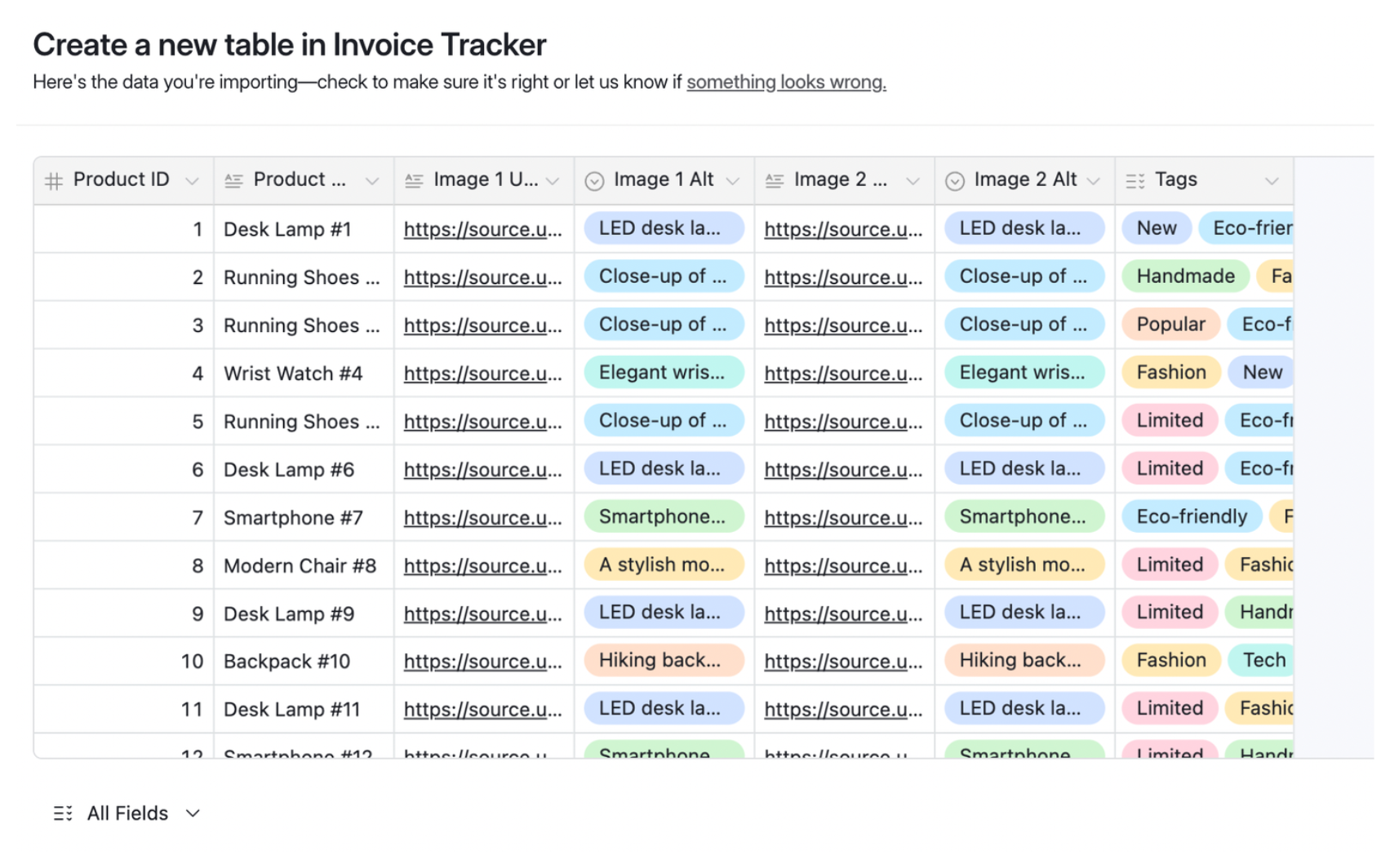
Airtable reads the file, detects column headers, and maps them to new fields
-
Review the field type assignments and click Import
For Excel workbooks with multiple sheets, Airtable lets you choose which sheet to import. You can also import into an existing table rather than creating a new one.
What it handles well
-
Live preview of your data during the import wizard before anything is committed
-
Full field mapping - choose which columns to include and map each to an Airtable field
-
Sheet selection for Excel workbooks with multiple sheets
-
Auto field type detection for dates, numbers, and select fields
-
Single select options can be created automatically from text columns
Where it falls short
Hyperlinks are dropped. If your Excel or Google Sheets file has cells with hyperlinks - Airtable's importer shows only the display text. The URL is silently stripped. This is the most common complaint about Airtable's native import.
5MB file size limit. Both CSV and Excel imports are capped at 5MB natively. Larger files need to be split before importing.
For most plain data imports the native importer is sufficient. If your file has hyperlinks that need to survive, or is over 5MB, read on.
Method 2: Spreadsheet Import
Spreadsheet Import is a dedicated import tool built specifically for Airtable. It handles the same file formats as the native importer but gives you more control over the process and preserves hyperlinks from Excel and Google Sheets files.
The one thing Spreadsheet Import does that native import cannot
Hyperlink preservation. For Excel files (.xlsx, .xls) and Google Sheets exported as .xlsx, text containing hyperlinks is preserved during import. When mapped to a long text field with rich text enabled in Airtable, the content comes through with the original display text and the embedded hyperlink intact. Airtable’s native importer keeps the display text but drops the underlying link.
Everything else including preview, field mapping, column selection, and sheet selection works the same way in both tools. Spreadsheet Import also removes the 5MB file size limit so large files do not need to be split first.
When to use it
Use Spreadsheet Import when your spreadsheet has hyperlinks that need to survive the import, or when your file is over 5MB. For plain data without links, the native importer works fine.
The free plan lets you import up to 100 rows so you can test with your real data before committing.
Method 3: Copy and Paste
For small tables or quick one-off data moves, copy-paste from your spreadsheet into Airtable's grid view is sometimes the fastest option.
How to do it
-
In your spreadsheet, select the rows and columns you want to move
-
Copy (Cmd+C or Ctrl+C)
-
In Airtable, open a grid view of the table you want to import into
-
Click the first empty cell in the first empty row
-
Paste (Cmd+V or Ctrl+V)
Airtable reads the clipboard data and creates records from it. If your Airtable table already has the right fields set up, it maps the pasted columns to those fields in order.
What to watch out for
This only works reliably for small datasets. For tables with hundreds or thousands of rows, the clipboard can struggle with that amount of data and results can be unpredictable.
Hyperlinks are lost here too. Copy-paste from Excel or Google Sheets does not transfer hyperlink data to Airtable any more reliably than the native importer.
Field order matters. The paste maps columns left-to-right to whatever fields exist in your Airtable table view. If the column order in your spreadsheet does not match the field order in Airtable, the data lands in the wrong fields.
Which Method to Use
| Native importer | Spreadsheet Import | Copy-paste | |
|---|---|---|---|
| Preserves hyperlinks | No | Yes (Excel and Sheets .xlsx) | No |
| Live preview | Yes | Yes | No |
| Field mapping | Yes | Yes | No |
| Sheet selection | Yes | Yes | No |
| Files over 5MB | No | Yes | No |
| Free to use | Yes | Yes (up to 100 rows) | Yes |
For most straightforward imports with plain data, the native Airtable importer is fine since it has a good preview, field mapping, and sheet selection. The one thing it cannot do is preserve hyperlinks from Excel and Google Sheets files. If that matters for your data, use Spreadsheet Import. If you just need to move a handful of rows quickly, copy paste works.
A Note on Google Sheets
Airtable does not have a direct Google Sheets import. The standard approach is to export your Sheet as a CSV or Excel file and then import that file.
If you export as .csv, you get plain data with no hyperlinks. If you export as .xlsx (File > Download > Microsoft Excel), hyperlinks added in Google Sheets are preserved in the Excel file and will come through with Spreadsheet Import.
For keeping data continuously in sync between Google Sheets and Airtable rather than doing a one-time import, see How to Copy Data From One Airtable Base to Another - the same sync options apply to Google Sheets as a source.