How to Fix Airtable Automation Script Timeouts
If an Airtable automation script times out, start by checking which part of the script is slow. Batching record updates usually fixes the problem, but large record queries and slow fetch() requests can also cause timeouts.
Airtable is currently testing a 120-second limit for the whole Run a script action. The shorter limits inside the script still apply: Airtable's scripting API can time out after 12 seconds, and each fetch() request can time out after 30 seconds.
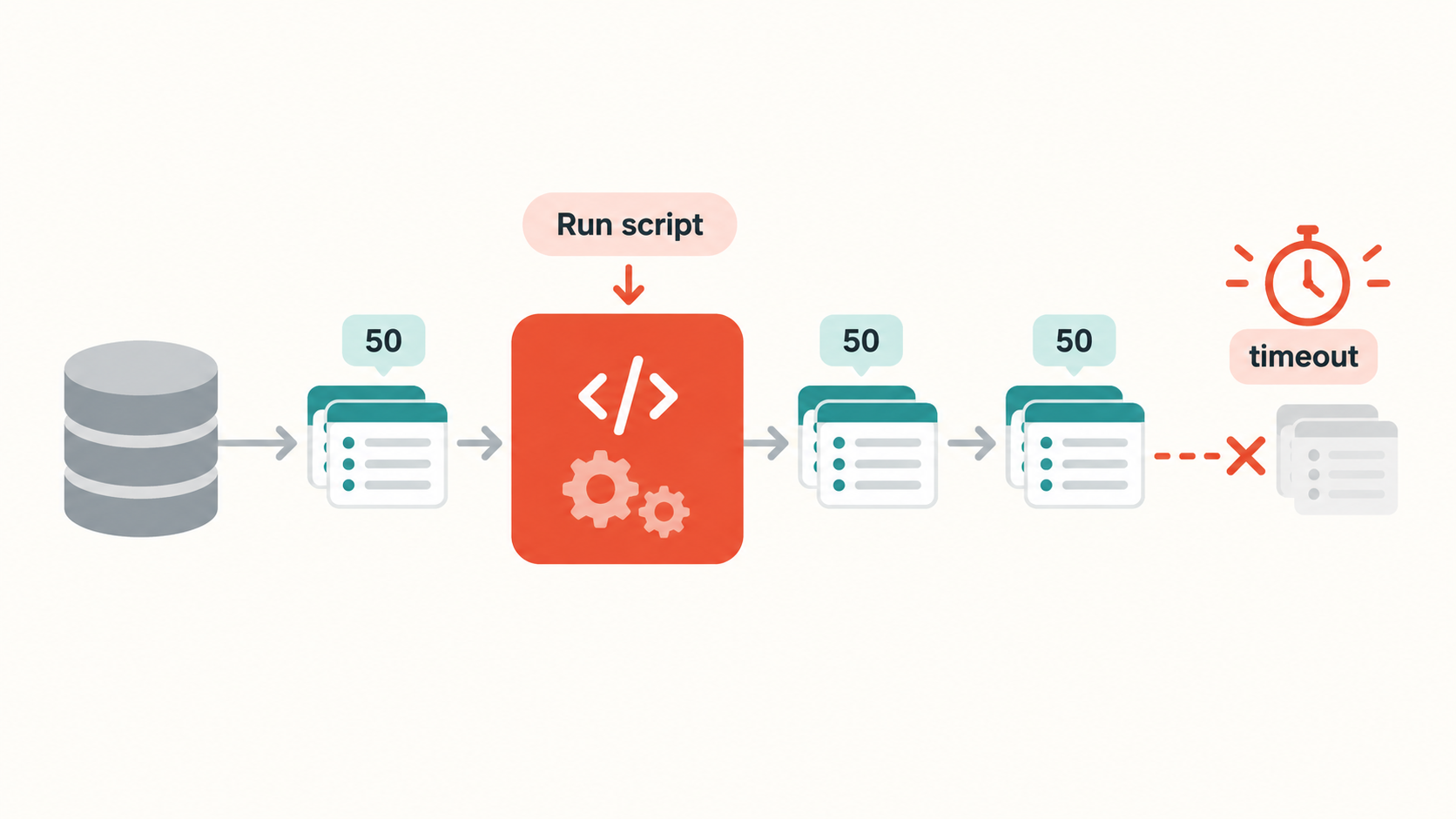
Batch record updates
Updating records one at a time is a common reason for a script to run slowly. This code sends one write for every record:
for (let record of records) {
    await table.updateRecordAsync(record.id, {
        Status: "Done"
    });
}
Build the changes first, then update up to 50 records in each call:
let updates = records.map((record) => ({
    id: record.id,
    fields: {
        Status: "Done"
    }
}));

while (updates.length > 0) {
    await table.updateRecordsAsync(updates.splice(0, 50));
}
The same pattern applies to createRecordsAsync() and deleteRecordsAsync(). Airtable allows up to 50 record changes in one mutation, so use the plural method whenever you are working with several records.
Read only the records and fields you need
Loading a whole table can also slow the script down. If you only need records from a particular view or a few fields, limit the query:
let query = await view.selectRecordsAsync({
    fields: ["Name", "Status"]
});
Use one record query when possible instead of calling selectRecordsAsync() several times for different fields. If you need to process a large table, a filtered view can reduce the amount of data the script has to load.
Check external requests
If the script uses fetch() to call another service, that request has its own 30-second timeout. Airtable will not keep waiting for a slow response.
Reduce the number of requests, avoid sending records one at a time, and check how long the external service takes to respond. If the service needs more time, split the work into smaller requests or process it in another system that can handle the longer job.
Split a large job into smaller runs
If one script still has too much work, split it across multiple script actions or automation runs. For example, the first step can prepare a batch and write a status such as Ready for step 2. A second automation can process those records and update the status again.
You can also use a queue table. The first automation adds work to the queue, and later runs process a smaller number of queue records at a time.
Use this when one run needs to read records, call another service, and write the results back to Airtable.
Run it manually in the Scripting extension
If the script only runs during a cleanup or data migration, use the Scripting extension instead of an automation. It runs in the foreground when someone clicks Run, so it is not tied to the automation action's background timeout.
The Scripting extension is available on paid plans and still has its own limits, including a rate limit of about 15 requests per second and a maximum of 50 records per create, update, or delete call. It also cannot start automatically from a record change, form submission, or schedule.
For a separate issue involving the number of automations in a base, see Airtable automation limits and how to free up space. If you are running out of monthly automation runs, see how to limit Airtable automation runs.