How to Automatically Link Google Drive Files to the Right Records in Airtable

You have an Airtable table that lists drawing numbers, but the corresponding files such as PDFs, CAD drawings, or images are stored separately in a Google Drive folder.

Each file name in that folder includes the drawing number, which makes it possible to identify which record in Airtable it belongs to.

What you want is simple:

Each Airtable record should show the correct Google Drive file.

Since there are many records, doing this manually would take far too long.

The goal is to automate the matching so every file is linked to the right record based on the drawing number in the file name.

So how can you achieve this?

First Decide What Airtable Should Store

There are two ways to set this up.

The first option is to keep the file in Google Drive and store the Drive link in Airtable.

That is usually what I prefer.

Google Drive stays the file storage system. Airtable becomes the place where you track the drawing number, project details, status, and link to the file.

The second option is to copy the actual file into an Airtable attachment field.

That can work, but it uses Airtable attachment storage. If your main reason for using Google Drive is to avoid filling Airtable with files, do not copy the files back into Airtable. Store the Drive link instead.

If storage is already the problem, read this first: how to solve Airtable attachment storage limits without changing your setup.

Check Airtable's Google Drive Sync First

Airtable has a Google Drive sync integration on paid plans.

It can sync Drive file details into Airtable, such as file name, file path, owner, file type, file size, and modified date. It can also sync file content into an attachment field if you turn that option on.

So if your goal is simply to bring Drive file information into Airtable, start there.

But if you need to match those files to existing records in another table based on a drawing number inside the filename, you will usually still need a matching step.

That is where Make helps.

Automating the Match With Make

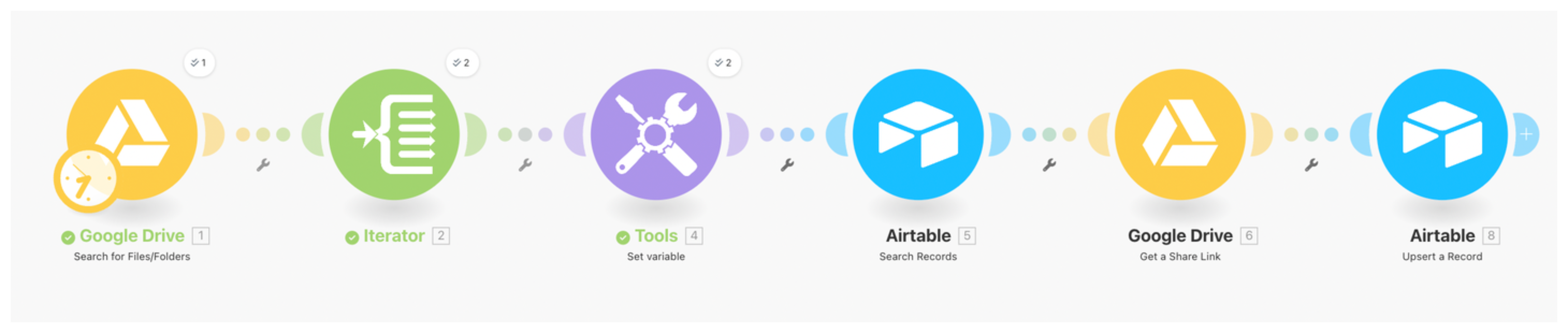
Make can go through the files in your Google Drive folder, read each file name, extract the drawing number, search Airtable for the matching record, and update that record.

Here is the setup.

Automating using Make

Step 1: Search for files in Google Drive

Begin your Make scenario with the Google Drive > Search files/folders module.

This module scans a specific folder in your Google Drive and retrieves all the files it contains. It is not a trigger but a search action, which means you can control when it runs and how many files it processes.

Select the folder that contains your PDFs, drawings, or images.

You can also filter by file type or name pattern if you only want to process certain files.

Step 2: Use an Iterator to process each file individually

Once the Search files/folders module retrieves all the files from your Google Drive folder, add an Iterator module next.

The Iterator breaks the bundle of files from the previous step into individual items so that each file can be processed one by one in the next steps.

Step 3: Extract the drawing number from each file name

Filenames already contain the drawing number (for example, DRG-001.pdf).

Use the Set Variable module to extract the drawing number from the file name.

If the file is named DRG-001.pdf, split the filename before the file extension and store DRG-001 as the drawing number.

This variable will help Make identify the corresponding record in Airtable.

Step 4: Find the matching record in Airtable

Next, use the Airtable > Search Records module.
Search for the record where the Drawing Number field matches the variable extracted from the filename.

If one matching record is found, continue.

If no matching record is found, send the file to an Unmatched Files table or review view.

I would not automatically create a new drawing record just because a file name did not match. A typo in the file name can create bad records very quickly.

If more than one record matches, send that to review too.

Step 5: Store the Drive link

If you only need people to open the file, store the Google Drive link in a URL field.

This is the cleanest setup for most teams.

Use the Google Drive module in Make to get the file link or file ID, then update the matching Airtable record.

Just make sure the people using Airtable also have permission to open the file in Google Drive.

For sensitive drawings or client files, a public "anyone with the link" setting may not be the right choice. A restricted Drive link is fine as long as the right people have access.

Step 6: Only Use Attachments if You Need Copies in Airtable

If you truly need the file copied into Airtable, update an attachment field instead of a URL field.

For that to work, Airtable needs to be able to fetch the file from the URL you give it.

A normal Google Drive share page is not always the same thing as a direct file URL. Test the exact link Make gives you before processing hundreds of files.

Also remember that copied files count against Airtable attachment storage. Airtable attachment download links can expire, so Google Drive should remain the long-term source if you need durable external links.

With this setup, files are linked based on the drawing number in the filename, and the Airtable record becomes the place where your team can find the right Drive file without hunting through folders.