When someone uploads several images through an Airtable form, Airtable saves them in one attachment field on one record. The form itself does not create one record per image.
If you need each image to have its own record, use one of these two methods:
- Drag the files into a table yourself when you already have access to Airtable.
- Send form uploads through a repeating group automation that creates one record for each attachment.
Upload files yourself
If you are adding the images yourself, Airtable can create the records for you.
Open the table where you want to store the images and make sure it has an Attachment field. In Grid view, drag several files onto the table and drop them where Airtable shows the option to create new records.
Airtable creates one record for each file and adds the file to the Attachment field. Gallery view also supports bulk attachment uploads for creating records.
This is the quickest option when the files are already on your computer and you do not need other people to submit them through a form.
Split form uploads into separate records
Use an automation when someone else is uploading the images through a form.
Create two tables:
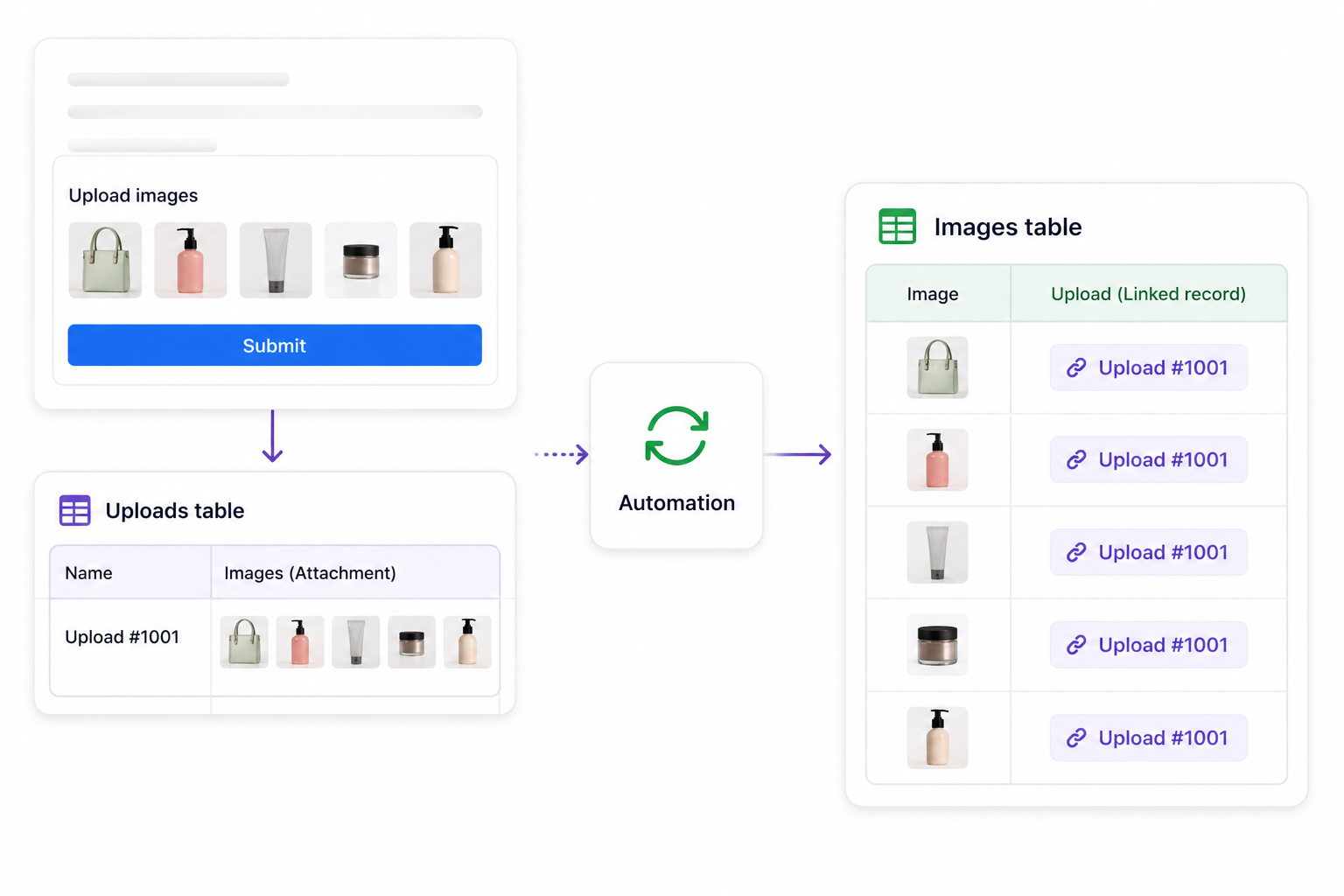
- Uploads stores the original form submission and all of its attachments.
- Images stores one image per record.
The form connects to the Uploads table. Add an Attachment field that allows the submitter to add multiple images.
In the Images table, add an Attachment field for the individual image. Add a linked record field back to Uploads so you can see which submission each image came from.
Create the automation
Create an automation that runs when a new record is created in Uploads.
Add a Repeating group and use the Uploads table's Attachment field as its input list. The repeating group runs the actions inside it once for every attachment.
Inside the repeating group, add a Create record action for the Images table. Map the attachment from Current item to the Image attachment field, and link the new record to the original Upload record.
You can also copy shared information from the form submission into every Image record, such as the submitter, product, project, category, or upload date.
If you plan to share the images with people outside Airtable, see How to Share Airtable Images with People Who Do Not Have an Airtable Account for the safest way to share them.
If the form submission contains five images, the automation creates five records in the Images table:
Upload submission
  ├── Image 1
  ├── Image 2
  ├── Image 3
  ├── Image 4
  └── Image 5