Want a change in one Airtable table to show up in another? Use a Lookup field when you only need to display the value. Use an automation when the change should update a field on the related record.
I’ll use a project tracker as the example. Projects stores the status of each project, and Tasks stores the work for those projects. The task list should show the current project status. When a project is put on hold, its tasks should also be marked as Blocked.
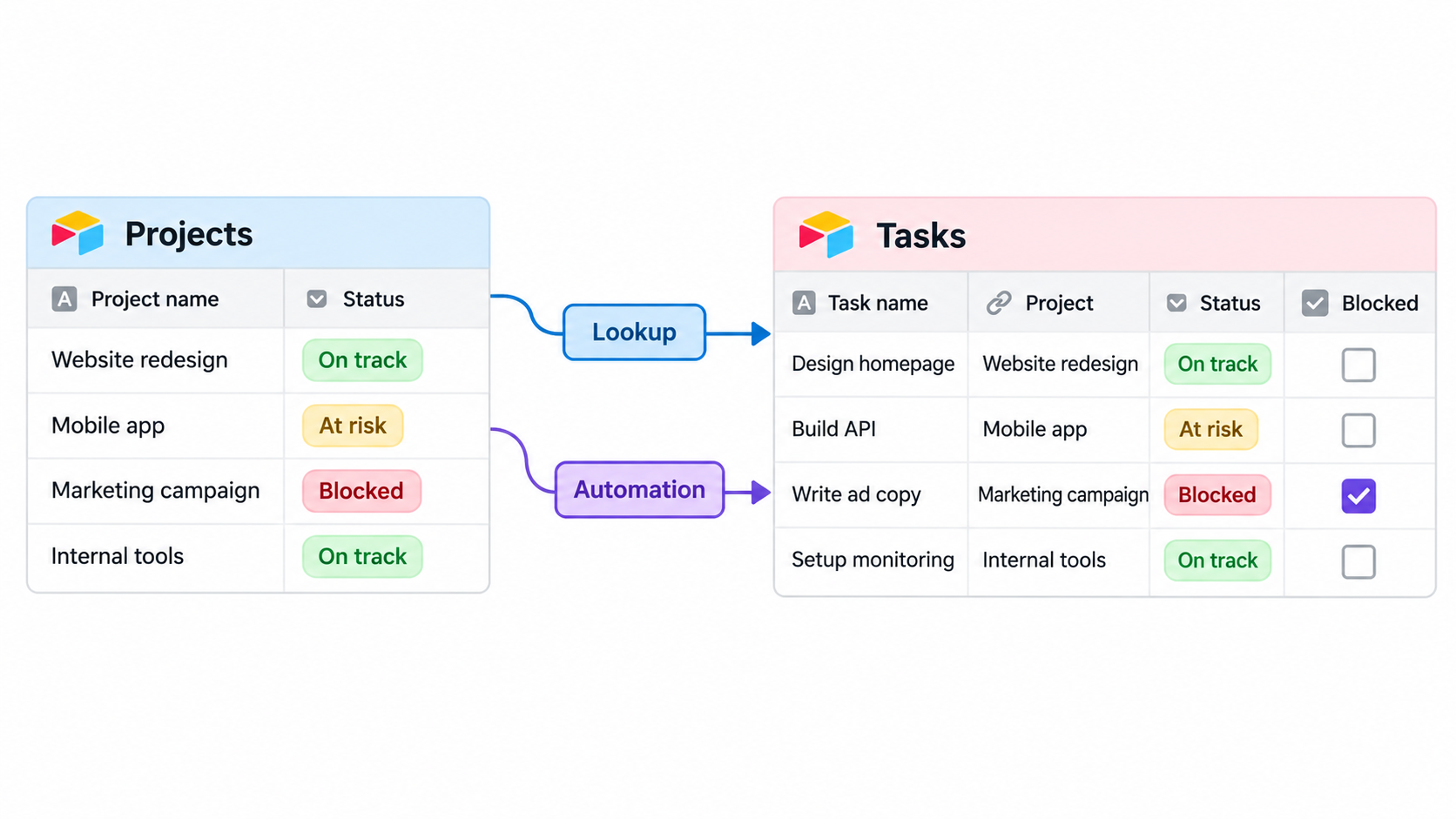
Link each task to its project
Open Tasks, add a Project field, and choose Link to another record. Select Projects as the table.
Now link each task to its project. If one project has several tasks, those task links will also appear on the project record.
Show the project status in Tasks
If Tasks only needs to display the current project status, add a Lookup field in Tasks.
Set it to look through Project, then choose Status from Projects. Each task will show its project's current status, and the value will change automatically when the project status changes.
This keeps Status in one place instead of creating another field that someone has to maintain. For the same linked-record and lookup setup in more detail, see how to show data from one Airtable table in another without automations.
Mark tasks when a project is put on hold
In this example, Tasks has a Blocked checkbox. The automation will check it when the linked project's status changes to On hold.
Create an automation with When record updated as the trigger. Choose Projects as the table and select Status as the field to watch.
Add a conditional group that runs when Status is On hold. Inside that group, add a repeating group using the project's linked Tasks records.
Inside the repeating group, add Update record:
- Choose Tasks as the table.
- Use the current task's Record ID for Record ID.
- Set Blocked to checked.
When the automation runs, Airtable checks Blocked on every task linked to that project. It updates those records instead of creating new tasks.
If the checkbox should be cleared when the project leaves On hold, add another conditional group for the other statuses and clear Blocked there.
Test the automation with a project that has several tasks. Change its status to On hold, then check the linked tasks.
When the tables are not linked
If the tables are in the same base but the records are not linked, use Find records to search Tasks with a unique project ID. Put Update record inside a repeating group for the records Airtable finds, and use each returned record's Record ID. For help creating the links first, see how to automatically link records between Airtable tables.
If the tables are in different bases, Airtable automations cannot update the other base directly. Use Airtable Sync when the second base only needs to display the source data.
To update records in the second base, use Make. Store each source record's Airtable record ID in a field in the second base. When the source changes, Make uses that ID to find and update the matching record.