How to Handle High-Volume Webhooks in Airtable
Airtable's incoming webhook trigger accepts five requests per second. If another service sends 100 events at once, sending all 100 requests directly to Airtable will hit that limit.
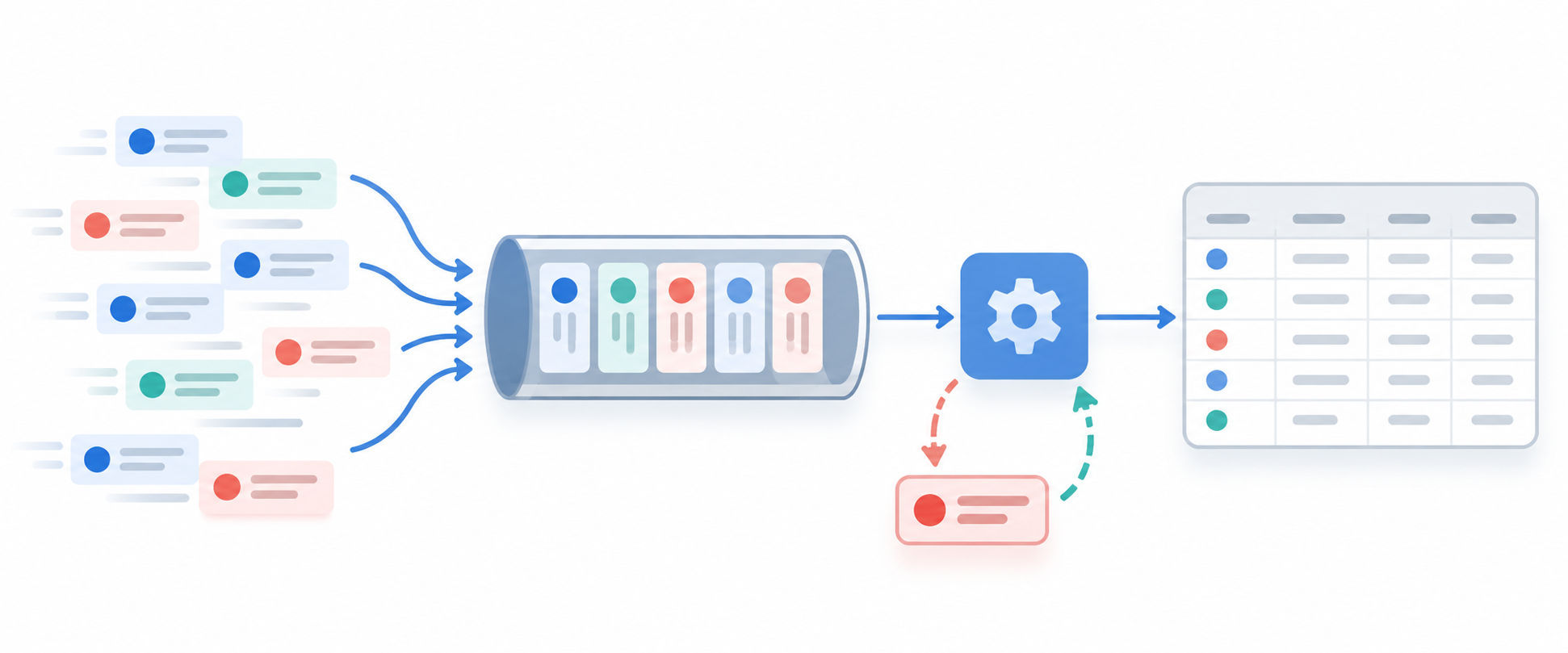
Send the events to a queue first. A worker then sends them to Airtable at four requests per second, so the queue absorbs the burst instead of Airtable.
The flow is: sender → queue endpoint → worker → Airtable.
1. Send the events to a queue
Use a managed queue service with a webhook endpoint. Give that endpoint to the service that sends your events.
When an event arrives, save its full payload and a unique event ID. Return a success response only after the queue has saved the event. The sender can then move on while the queue holds the event for Airtable.
For each queued event, save:
- Event ID
- Payload
- Status, starting as Pending
- Attempts
- Next attempt time
- Last error
2. Let one worker deliver the queue
Create a worker that reads pending events and sends them to Airtable's When webhook received URL.
Set the worker to send no more than four requests per second for that Airtable base. After Airtable accepts an event, change its status to Complete and let the worker take the next event.
The worker keeps processing the queue until every pending event is complete. A burst of 100 events will take time to finish, but the events stay stored instead of being sent to Airtable all at once.
3. Retry failed events
When a delivery fails, leave the event as Pending and set its next attempt time. The worker can try it again after a delay instead of sending it repeatedly during the same error.
After several failed attempts, change the status to Needs review and save the error response. You can fix the problem and send that event again without replaying the whole queue.
4. Check the payload and automation limits
A queue keeps the requests below five per second, but the webhook has two other limits. Airtable accepts POST requests up to 100 KB, and each webhook that starts an automation uses one automation run from the workspace allowance.
Check Airtable's webhook trigger documentation before sending the events.
If the worker writes records through the Web API instead of triggering an automation, use batches of up to 10 records and follow how to create multiple records with the Airtable API. For API error 429, see how to fix Airtable API error 429.