How to Connect Airtable to Follow Up Boss
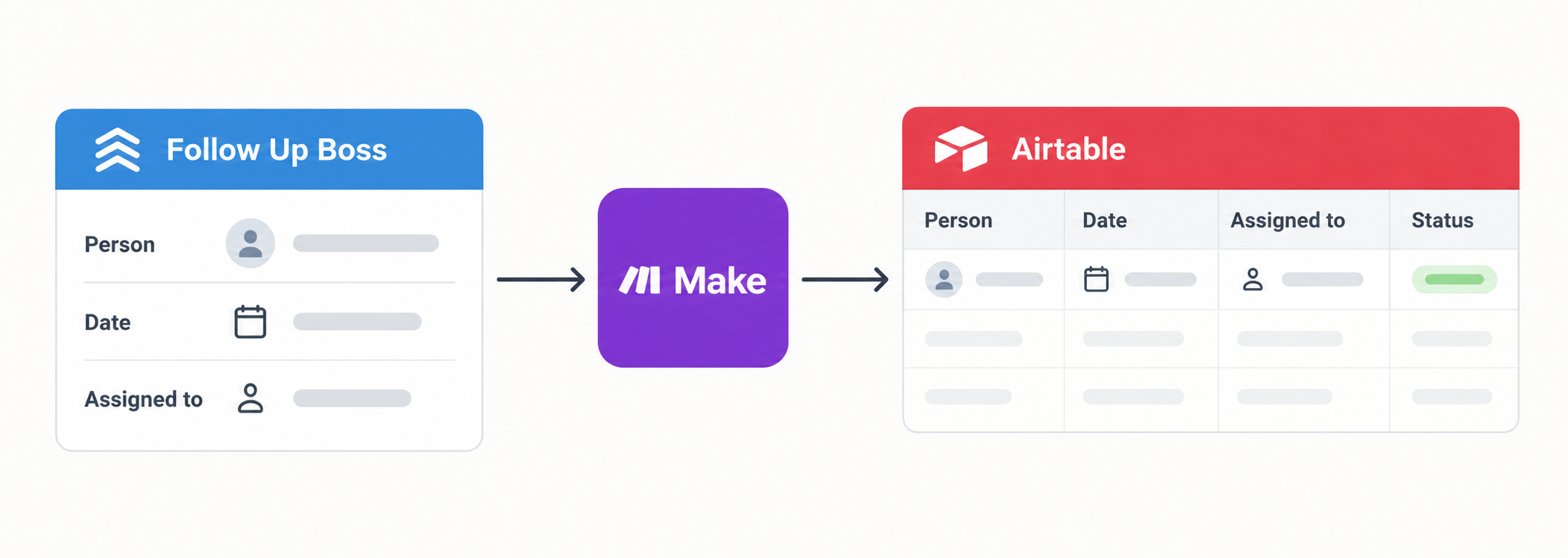
Let’s take a simple Follow Up Boss workflow. A team schedules meetings with people in Follow Up Boss. Follow Up Boss stores each meeting as an appointment, but the team wants an Airtable list showing who it is with, when it is scheduled, who is responsible for it, and whether it is complete.
When a new meeting is added in Follow Up Boss, Make creates the matching Airtable record automatically.
Create the Airtable meetings table
Create a Meetings table with these fields:
- FUB Appointment ID, the appointment ID from Follow Up Boss
- Person
- Date and time
- Assigned to
- Status, such as Scheduled, Completed, or Cancelled
- Follow Up Boss link
The FUB Appointment ID field lets Make find the same appointment again if its details change. It prevents the same appointment from becoming multiple Airtable records.
Send new appointments to Airtable
In Make, create a new scenario and add Follow Up Boss > Watch Appointment Created as the first module. Connect Follow Up Boss with an API key from Admin > API.
Add Airtable > Upsert a record as the next module and choose the Meetings table. Map the appointment ID, person, date, assigned team member, status, and Follow Up Boss link into the matching fields.
Set FUB Appointment ID as the matching field. Make creates a new Airtable record when the ID is not there yet. If the appointment is sent again with updated details, Make updates the existing record instead of creating another one.
Test the scenario with one appointment. Check the date, time, assigned person, and status in Airtable before turning it on.
Keep meeting changes updated
If a meeting is rescheduled or cancelled, create a second Make scenario with the Follow Up Boss trigger for changed appointments. Search the Meetings table for the matching FUB Appointment ID, then update the Airtable record with the new date, time, or status.
This keeps the Airtable list useful for the team without copying every contact, text message, or call from Follow Up Boss.
When a direct API connection makes sense
Make is the simpler option when its Follow Up Boss modules cover the workflow. Use the Follow Up Boss API when you need an action that Make does not provide or when you are building your own integration.
Follow Up Boss API keys use Basic Authentication and have the same access level as the user who created them. Follow Up Boss also requires registered system headers for API requests. See the Follow Up Boss authentication documentation before building a direct connection.
For another Airtable workflow that sends reminders after a date, see how to send automated follow-up emails in Airtable.