Airtable Time Zone Issue: One Field Shows Local Time and Another GMT
If one Airtable field shows 4:00 PM and another shows 5:00 PM, check their time zone settings first. Airtable stores date and time values in GMT, but it can show them in your local time or in one shared time zone.
This often happens when a form or calendar fills one field and Airtable creates the other field automatically, such as a Created time field.
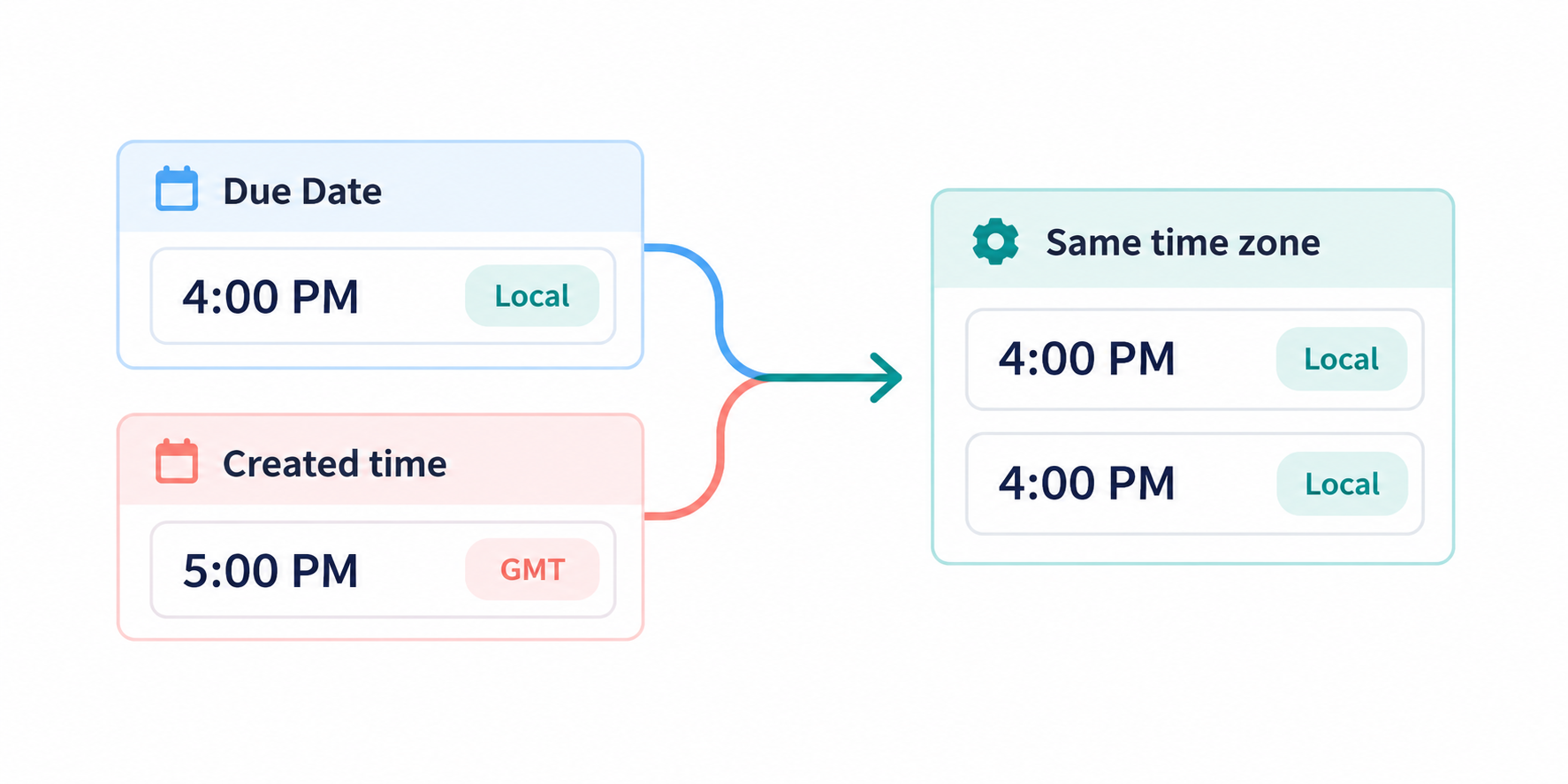
Set both fields to the same time zone
Open the first date field, click the field name, and select Edit field. Turn on Use the same time zone for all collaborators, then choose the time zone you want to use.
Repeat the same steps for the other date field. Choose the same time zone in both fields, such as America/Los_Angeles or GMT.
Once both fields use the same setting, Airtable will display them consistently. If you cannot see the shared time zone option, turn on Include time first.
See Airtable’s date and time zone documentation for the available settings.
If the field contains only a date
Airtable stores a date-only value as midnight GMT. In a time zone behind GMT, that can appear as the previous day.
If the field is meant to show a calendar date, create a formula that returns only the date:
DATETIME_FORMAT({Due Date}, 'YYYY-MM-DD')
The formula returns a stable value such as 2026-10-25 instead of a time that changes with the viewer’s location.
If the timezone difference appears inside a date calculation, see why DATETIME_DIFF shows the wrong value in Airtable.