How to Track and Export Airtable Comments
Need your team to notice Airtable comments and find them later? Comments stay attached to individual records, which works for a quick conversation but becomes difficult when people need notifications, a searchable history, or a copy outside Airtable.
I’ll use a Jobs table as the example. Each job has a Job Reference, and the team uses comments to discuss the work. Keep those comments for the conversation, then use one of the setups below when the comment needs to go somewhere else.
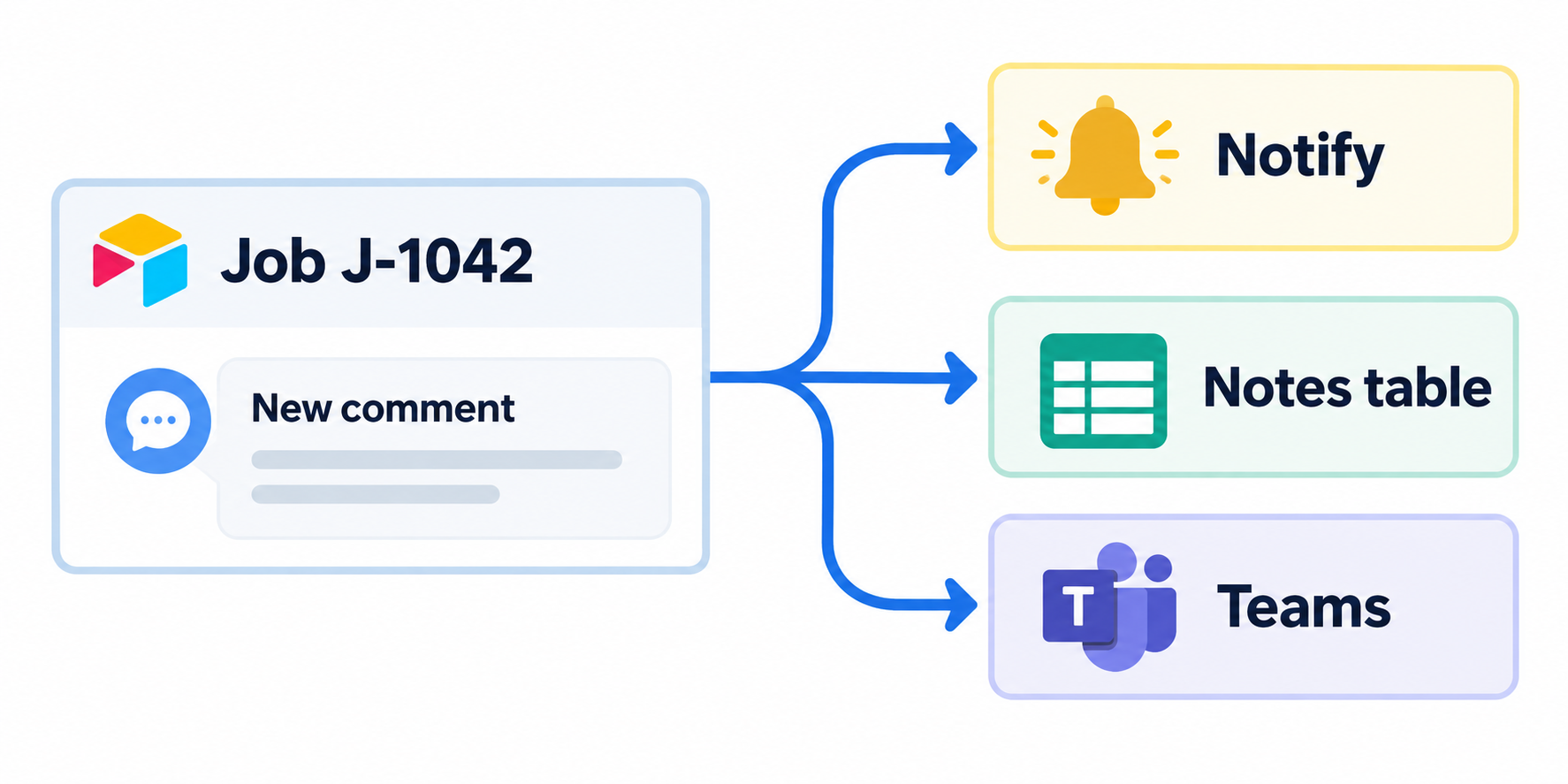
| What you need | Use this setup |
|---|---|
| Tell people about new comments | A When a comment is added automation |
| Search comments with normal Airtable filters | A linked Notes table |
| Export comments that are already there | Comment Exporter |
Send a notification when someone comments
If the problem is that people miss new comments, start with Airtable’s native comment trigger. You can also @mention someone in the comment or ask them to watch all comments on the record, but the automation is useful when every new comment should reach a shared place such as Microsoft Teams.
Open the base, select Automations, and add the When a comment is added trigger. Choose the Jobs table, then add an email or Microsoft Teams action. Include the comment text, the Job Reference, the person who wrote it, and a link to the job record in the message.
The trigger runs for new top-level comments in the table. Your team can still reply, mention people, and continue the conversation in Airtable, but a reply does not start the automation. The same is true for comments on attachments and proofing annotations.
Save comments in a searchable Notes table
Use a separate table when people need to filter comments by job, author, or date. Create a Notes table and add these fields:
| Field | Type | Purpose |
|---|---|---|
| Job | Link to another record | Connect the note to the job |
| Comment | Long text | Store what was written |
| Comment author | Single line text | Store who wrote it |
| Comment time | Date | Store when it was added |
Then add a Create record action to the same comment automation. Map the triggering job to Job, the comment text to Comment, and the comment’s author and time to the other two fields.
Now each new top-level comment creates a Notes record linked to the correct job. The original Airtable comment remains on the job, while the Notes table gives you a normal list that you can filter, sort, and use in views or interfaces. Replies inside a comment thread are not copied by this automation.
If you need to track when a comment changes a job, also update the job’s status, owner, or due date. Comments do not update a Last modified field by themselves, so see why Airtable comments do not update Last Modified for that specific problem.
Export comments that already exist
The automation only handles comments added after you turn it on. It will not go back through older job records and create Notes records for you.
To export the comments already in Airtable, use Comment Exporter. You can then keep the export as a separate archive or import the comments into the Notes table and link them to the matching jobs.