Let's say you receive an email with a subject line like:
From John Smith regarding Project A
That subject line gets logged somewhere, and you already have a record for John Smith in Airtable.
Now you want your automation to look at the subject line, find "John Smith" inside it, and return the correct Airtable record.
At first, I would normally look at Airtable's Find records action for something like this.
The problem is the direction of the comparison.
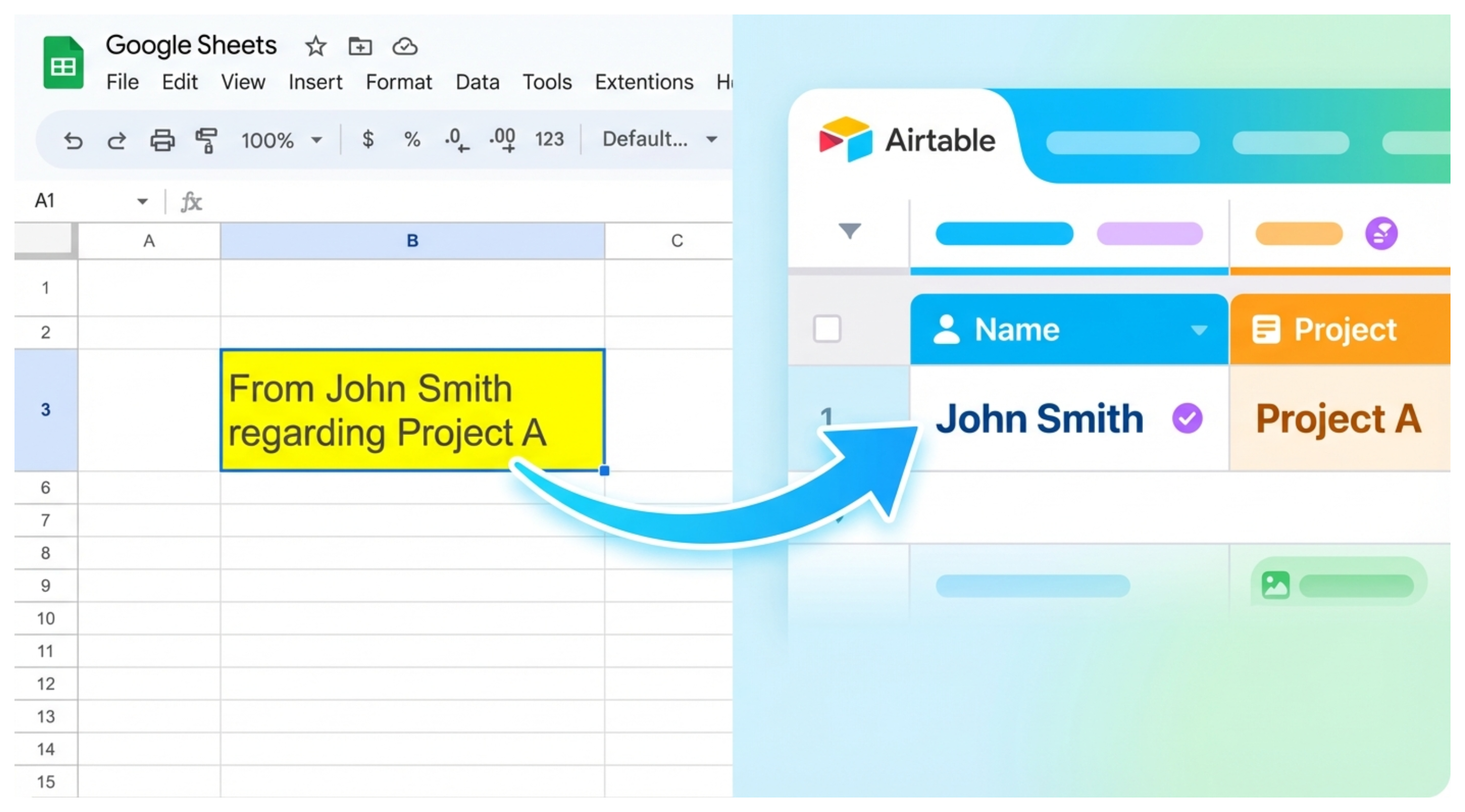
Why Find records doesn't work for this
Airtable's Find records action lets you build conditions using an Airtable field, an operator, and the value you want to compare it against.
For text fields, that includes conditions such as contains.
So you can create a condition like:
Name contains [incoming text]
But that is the opposite of what we need.
Our Airtable field contains:
John Smith
And the incoming text contains:
From John Smith regarding Project A
What we actually need to check is:
Does the incoming text contain the value from the Name field?
Airtable's Find records condition builder doesn't let you flip the comparison around like that.
For this situation, I prefer using a script.
Find the record with a script
Add a Run a script action after your automation trigger.
The script needs three inputs:
- The incoming text you want to search
- The Airtable table you want to search
- The field containing the value you want to match
In this example, the incoming text would be the email subject, and the Airtable field would contain names such as John Smith.
You can use this script:
let { incomingText, tableId, nameFieldId } = input.config();

let query = await base.getTable(tableId).selectRecordsAsync({
  fields: [nameFieldId],
});

let matchedRecord = null;

for (let record of query.records) {
  let name = (record.getCellValueAsString(nameFieldId) || "").toLowerCase();

  if (name && incomingText.toLowerCase().includes(name)) {
    matchedRecord = record;
    break;
  }
}

output.set("recordId", matchedRecord ? matchedRecord.id : "");
The script goes through the records in your table and checks whether each name appears somewhere inside the incoming text.
I am also converting both values to lowercase before comparing them. That way, John Smith, JOHN SMITH, and john smith are treated the same.
Once it finds a match, it returns that record's ID.
You can then use the record ID in the next automation action to update the record, link it to another record, or do whatever else your workflow needs.
What happens if there is no match?
If none of the Airtable values appear in the incoming text, the script returns an empty recordId.
I would add a conditional step after the script so the automation only continues when a record ID was actually found.
What you do when there is no match depends on the workflow. You might stop there, send yourself a notification, or create a new record for someone to review.
Be careful with similar names
There is one thing I would check before using this on a large table.
Let's say your Airtable records include:
John Smith
and
Smith
Both values technically appear inside:
From John Smith regarding Project A
The script stops at the first match it finds, so you could end up with the wrong record.
If your data has names like this, I prefer checking the longer, more specific values first.
You could also add another piece of information to the match. For example, instead of relying only on someone's name, you might have an email address, customer number, project code, or another value that makes the record easier to identify.
Also, despite the slug of this article, this isn't true fuzzy matching. The script is checking whether one piece of text appears inside another. If John Smith comes through as Jon Smith, this script will not consider it a match.
For that kind of workflow, you would need actual fuzzy matching logic rather than a simple includes() check.
If you are using the matched record to automatically create a relationship between tables, I have a separate article on how to automatically link Airtable form submissions to existing or new records.