How to Extract Data From Attachments and Place It Into the Correct Fields in Airtable
You have an Airtable base where you store customer invoices as attachments. Every record has a PDF or image of the invoice, and you also have fields for customer name, invoice date, invoice number, and invoice amount.
You want Airtable to read the invoice automatically when you upload it and fill each field such as customer name, invoice number, date, and amount without you having to enter anything manually.
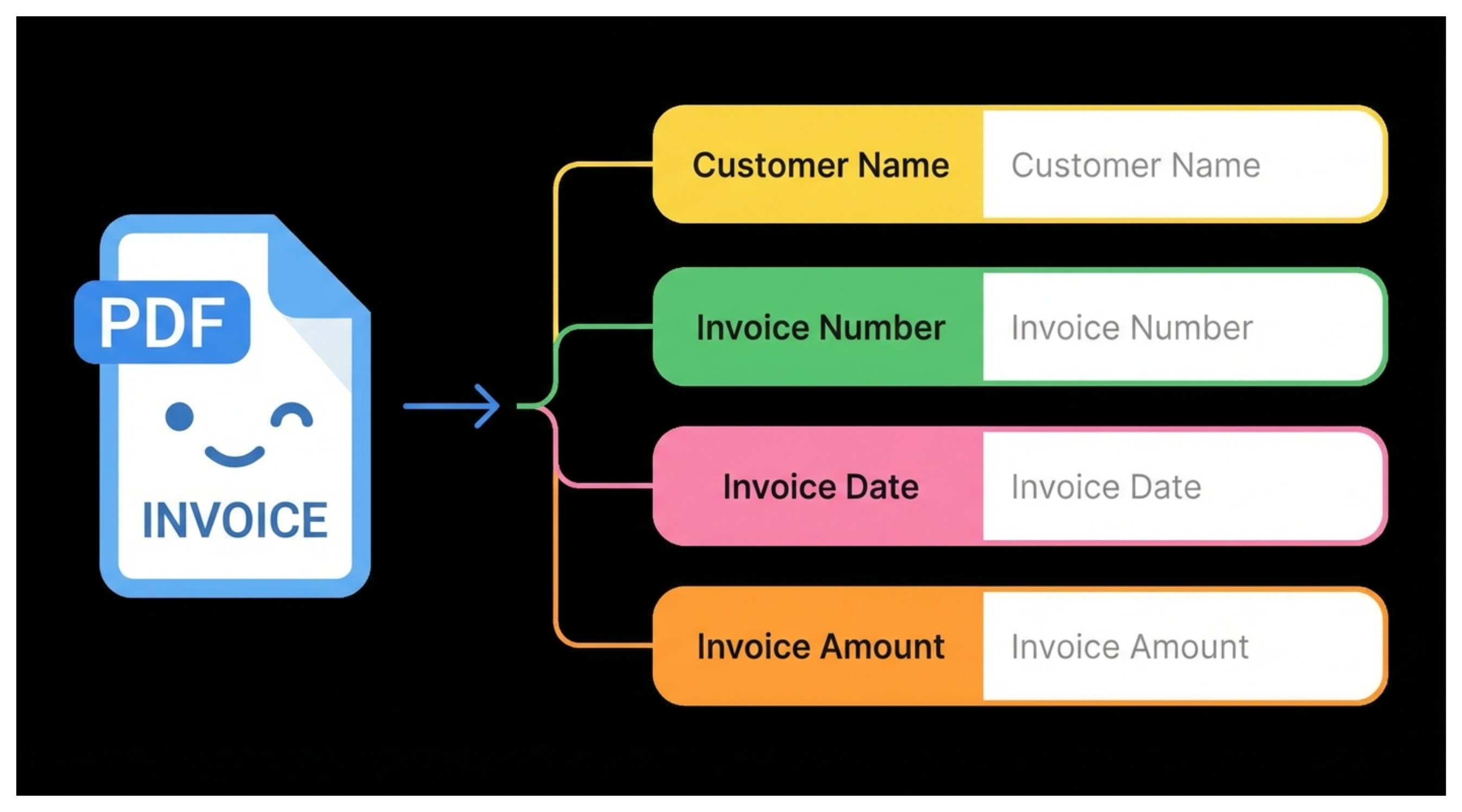
The question is whether Airtable can extract these details directly from the attachment in a reliable way.
Extract Data From Attachments
Yes, you can extract data from your attachments, and Airtable gives you a built in way to do this.
Airtable has a field agent called Analyze Attachments that can read your uploaded documents and pull out the information you need. It works with PDFs, images, scanned invoices, and most common file formats.
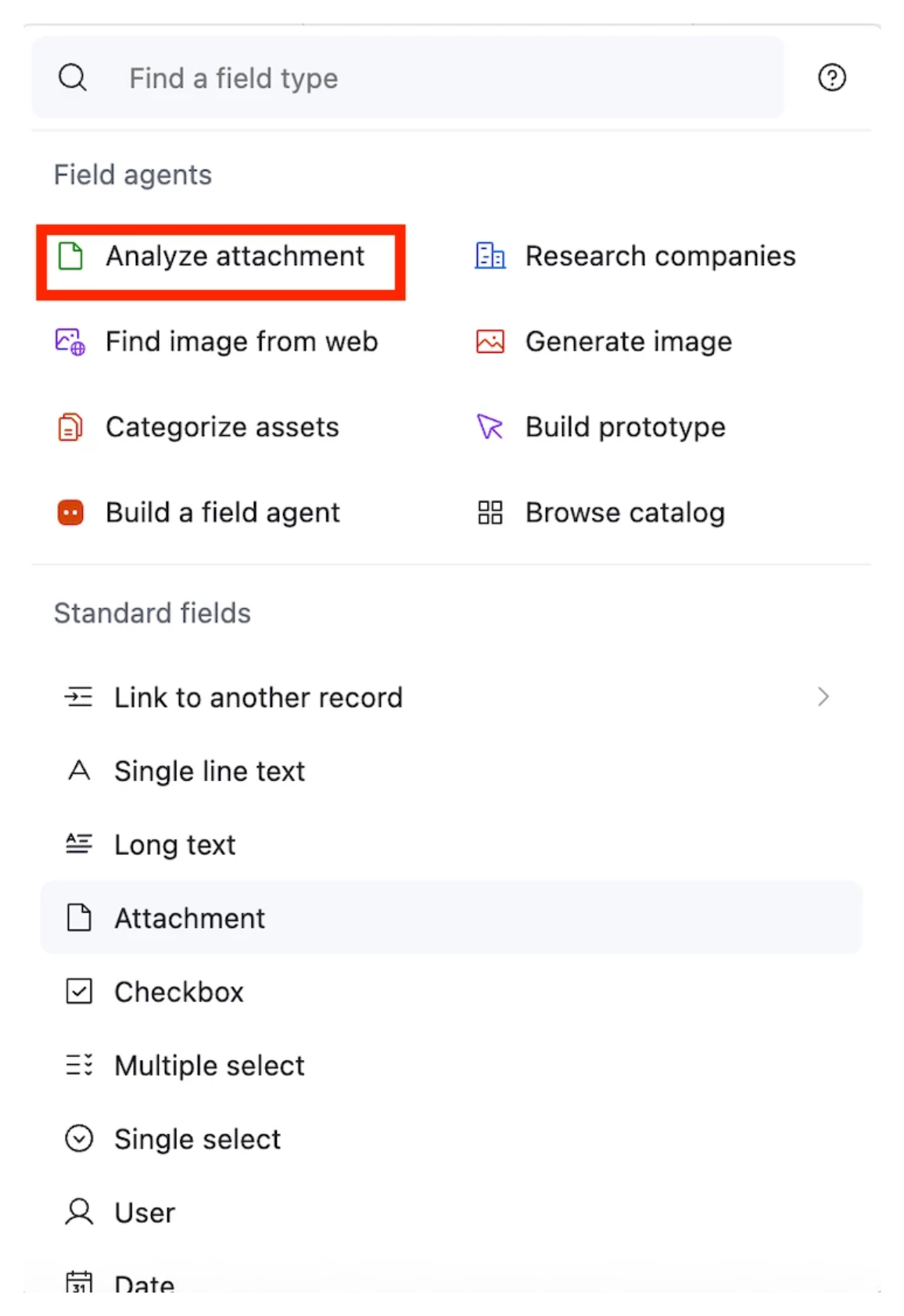
To extract data, you create a field agent field and select Analyze Attachments as the agent. For example, if you want to extract the customer name, you create a field for that purpose.
You then choose the AI model you want and write a prompt that tells the model to read the invoice and return only the customer name. After that, the agent handles the extraction for you.
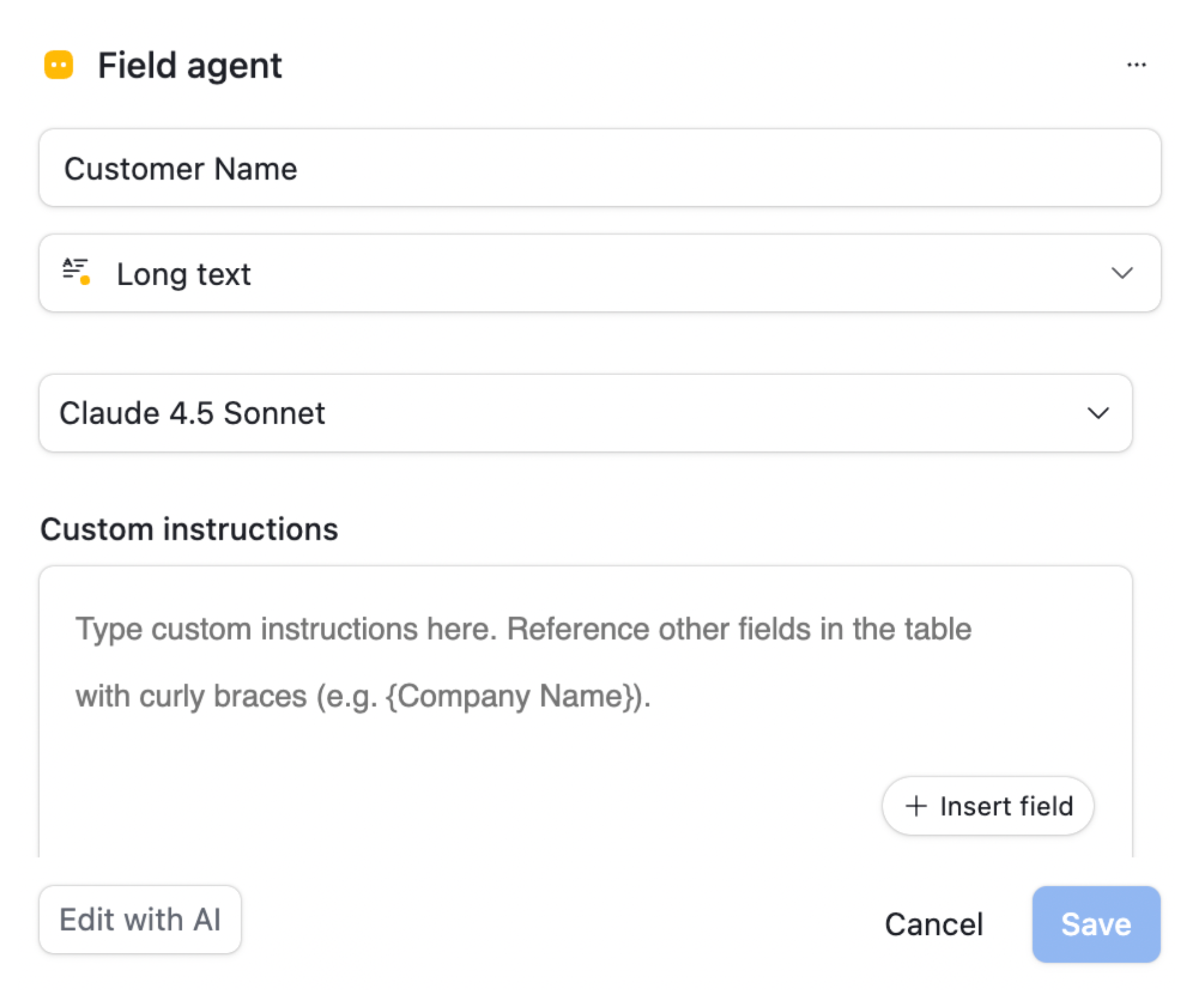
You repeat this process for every detail you need. You create another agent field for the invoice amount, another for the invoice number, another for the invoice date, and so on. Each field becomes responsible for pulling out one specific value from the attachment.
This setup works, but it has a downside. The attachment gets analyzed again for every agent field you create. This means the same document is processed many times, which increases your AI usage costs very quickly.
The Better Approach
Instead of creating separate fields for every detail, you create one field that extracts everything in a single step.
This makes your setup easier to manage and prevents Airtable from running the model repeatedly on the same attachment.
You can name this field something like Extracted Data. This will be the only field agent that uses Analyze Attachments.
In this field, you write one prompt that tells the model to read the attachment and return all the values you need inside a single JSON object.
This way, you have every extracted detail stored in one place.
Your prompt can look like this:
Extract the following fields from the attached document and return your answer as a JSON object only.
Required fields:
customer_name
invoice_number
invoice_date
invoice_amount
If a field is missing, return null for that key.
Once this runs, you have a single field that contains all extracted information in one clean JSON response.
Pulling Values Into Individual Fields
After you have the JSON, you create formula fields to pull out each value. For example, if you want the customer name, you use a formula like this:
REGEX_EXTRACT({Extracted Data}, '"customer_name"\s*:\s*"([^"]*)"')
You repeat the same pattern for invoice number, invoice date, invoice amount, and anything else you need. You only change the key in the expression.
This gives you separate fields for each value while all the work happens once inside the Extracted Data field. It reduces your AI cost and keeps the setup easy to maintain.