How to Add Data to a Synced Destination Table in Airtable
When you sync a table in Airtable, all records flow from the source to the destination. The destination table is read-only. You cannot add or edit records in it directly. Any new records must be added to the source table, where they then appear in the destination through the sync.
This creates a challenge when different teams need to contribute their own records while still receiving shared data from a central source.
Setting up views to separate team data
Before deciding how teams add records, set up the source table correctly so teams only see their own data.
Create a custom view in the source table for each team, filtered by a Team or Department field. When each team's base syncs from that specific view, they only receive records tagged to them.
With that in place, any record a team adds to the source gets tagged with their identifier and appears only in their synced view.
Option 1: Forms pointed at the source table
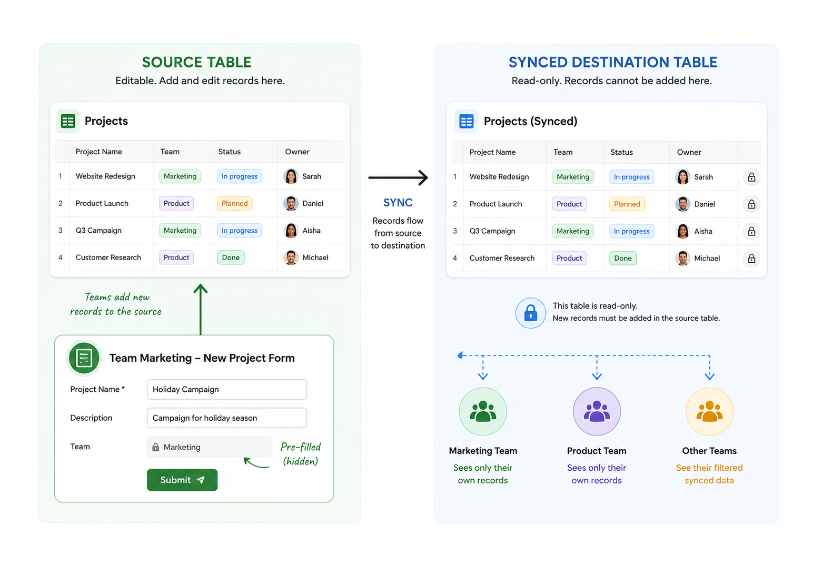
On any plan, forms are the most straightforward way for teams to contribute records to a synced setup.
Create a form that submits directly to the source table. Pre-fill the Team field with a hidden default value matching the team using the form. Team members never see the team selector; they just fill in the relevant fields and submit.
The record lands in the source table with the correct tag, appears in that team's filtered view, and syncs down to their destination table automatically.
Airtable's native forms support prefilled fields via URL parameters at no cost, so this setup works on the Free plan without any third-party tools. If you need more control, including update forms, conditional logic, or a more polished submission experience, Fillout connects directly to Airtable and handles all of that.
Option 2: Two-way sync for editing and creating records (Business and Enterprise Scale plans)
On Business and Enterprise Scale plans, two-way sync can let teams edit synced records directly in the destination table. You can also allow them to create or delete records there, if the source and destination permissions are configured for those actions.
To enable this, turn on Allow edits from other bases in the source sync settings, then enable Allow creating new records or Allow deleting records as needed. The target sync must allow users to edit source records, and their base or table permissions must allow them to create or delete records.
Records created in the target must meet the filters on the source view. Airtable does not support creating or deleting these synced records through the API, an automation, or a form. If the team only needs to submit new records, keep using the form on the source table.
If the linked-record picker is empty in the synced table
A selection condition can work in the source base but leave the linked-record picker empty in the synced table. The synced table does not carry over the source base's selection filter, and the fields used by that rule are not always available there.
If people must choose only records that meet the rule, let them make the selection in an Interface connected to the source table. The source picker can apply the condition, and the selected record then reaches the destination through the sync.
If people must choose records in the destination base, remove the condition from the synced linked field. Add a lookup or formula that flags a choice when it no longer meets the rule. The picker stays usable, and the team can see which records need attention.
For a related pattern where you want an editable destination without using sync at all, see how to do one-way sync in Airtable while keeping the destination table editable.